Classroom Monitoring Tools can be used by a teacher to quickly manage selected student computers during a lesson. The console executes actions directly on selected student computers.
This feature allows you to lock screens, send keystrokes, open a web page, start a program, control power actions, and apply classroom restrictions from one place.
Typical use cases include:
- Locking student screens before giving instructions.
- Opening the same lesson website on selected student computers.
- Restarting lab computers after a lesson or before the next class.
- Disabling distractions during tests or focused work.
- Sending a shortcut or command to all selected computers.
Tools Tab (Immediate Actions for Student Computers)
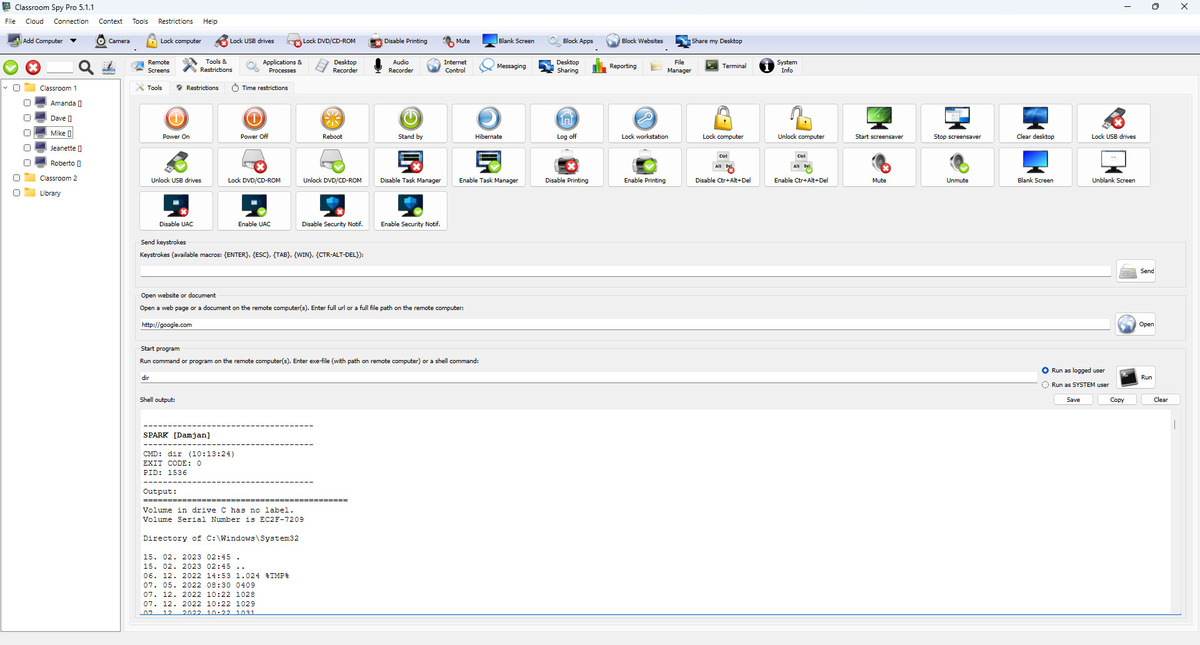
This tab executes actions immediately on selected computers. The console executes actions directly on selected student computers.
Tools tab actions and what each action does:
| Action | What it does |
|---|---|
| Power On | Turns on selected computers (Wake-on-LAN, if available). |
| Power Off | Shuts down and powers off the computer. |
| Reboot | Restarts the computer. |
| Stand by | Puts the computer to sleep. |
| Hibernate | Saves current work and powers down. |
| Log off | Signs out the current user. |
| Lock workstation | Locks the current user session. |
| Lock computer | On Windows, blocks the physical keyboard, mouse, and laptop trackpad, including on sign-in and security screens, until the teacher or administrator unlocks it. |
| Unlock computer | Removes the lock set by Lock computer. |
| Start screensaver | Starts the screensaver on the student computer. |
| Stop screensaver | Stops the screensaver on the student computer. |
| Clear desktop | Clears desktop items from view (depends on OS support). |
| Lock USB drives | Blocks USB storage use. |
| Unlock USB drives | Allows USB storage use again. |
| Lock DVD/CD-ROM | Blocks DVD/CD drive use. |
| Unlock DVD/CD-ROM | Allows DVD/CD drive use again. |
| Disable Task Manager | Stops students from opening Task Manager. |
| Enable Task Manager | Allows Task Manager again. |
| Disable Printing | Stops printing. |
| Enable Printing | Allows printing again. |
| Disable Ctrl+Alt+Del | Turns off Ctrl+Alt+Del options on supported systems. |
| Enable Ctrl+Alt+Del | Turns Ctrl+Alt+Del options back on. |
| Mute | Mutes system sound. |
| Unmute | Unmutes system sound. |
| Blank Screen | Shows a blank screen to the user. |
| Unblank Screen | Shows the normal screen again. |
| Disable UAC | Turns off UAC prompts on supported Windows computers. |
| Enable UAC | Turns UAC prompts back on. |
| Disable Security Notif. | Turns off security notifications on supported Windows computers. |
| Enable Security Notif. | Turns security notifications back on. |
Additional commands in this tab:
| Command | What it does |
|---|---|
| Send Keystrokes | Sends keyboard input to selected computers. Supported macros are {ESC}, {TAB}, {ENTER}, {WIN}, {CTR}, {CTR-ALT-DEL}, {BACKSPACE}, {INSERT}, {DELETE}, {HOME}, {END}, {PGUP}, {PGDN}, {LEFT}, {UP}, {RIGHT}, {DOWN}, and {F1} to {F12}. {CTR-ALT-DEL} sends the real secure key combination (it is not typed as text). |
| Open Website or Document | Opens a website URL or document path on selected computers. |
| Start Program | Starts a program on selected computers and shows command output when available. |
Restrictions Tab (Persistent Student Computer Restrictions)
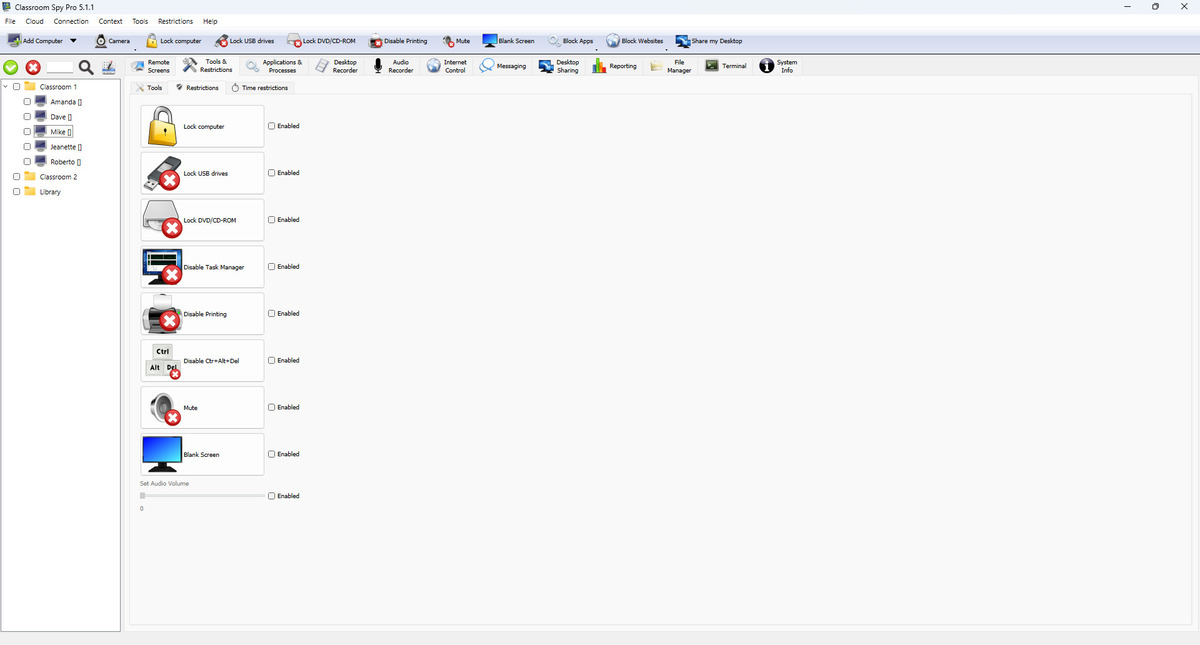
Use this tab for restrictions that stay active. Unlike Tools, these settings are applied globally to all student computers (not only currently selected computers).
Persistent restrictions available in this screen:
| Restriction | What it does when Enabled |
|---|---|
| Lock computer | On Windows, keeps the physical keyboard, mouse, and laptop trackpad blocked across desktop, sign-in, and security screens until you disable this restriction. |
| Lock USB drives | Keeps USB storage blocked. |
| Lock DVD/CD-ROM | Keeps DVD/CD drive use blocked. |
| Disable Task Manager | Keeps Task Manager disabled. |
| Disable Printing | Keeps printing disabled. |
| Disable Ctrl+Alt+Del | Keeps Ctrl+Alt+Del options disabled on supported systems. |
| Mute | Keeps sound muted. |
| Blank Screen | Keeps screen blank. |
| Set Audio Volume | Keeps a fixed sound level. |
When you enable a restriction, the action is applied right away. When you disable it, the reverse action is sent (for example lock USB / unlock USB). Settings are stored on the student computer and applied again after reconnect.
Time Restrictions Tab (Daily Student Computer Time Limits)
This tab is based on daily active usage minutes per user.
Time-restriction actions available in this screen:
| Action | What happens after the configured daily usage threshold |
|---|---|
| Power Off | Shuts down the computer. |
| Reboot | Restarts the computer. |
| Stand by | Puts the computer to sleep. |
| Hibernate | Puts the computer into hibernation. |
| Log off | Signs out the current user. |
| Lock workstation | Locks the current user session. |
The agent checks usage regularly. When daily limit is reached, it runs the selected action. If Show message is enabled, students first see your message, then the action runs. Restrict Administrator accounts decides if admin sessions are also limited.