Remote Screens can be used by a teacher to see live student screens during class, computer lab work, exams, or guided practice. This feature helps the teacher quickly notice students who are stuck, off task, or using the wrong application.
This feature allows you to monitor all selected student computers from one console, open a larger view when help is needed, and keep the class focused without walking to every desk.
Typical use cases include:
- Checking whether students are following the lesson activity.
- Finding students who need help before they ask.
- Confirming that exam or lab computers are on the correct screen.
- Opening remote control when a student needs direct assistance.
Remote Screens Overview
The Remote Screens tab displays live thumbnails of all selected student computers. It is the main real-time monitoring workspace.
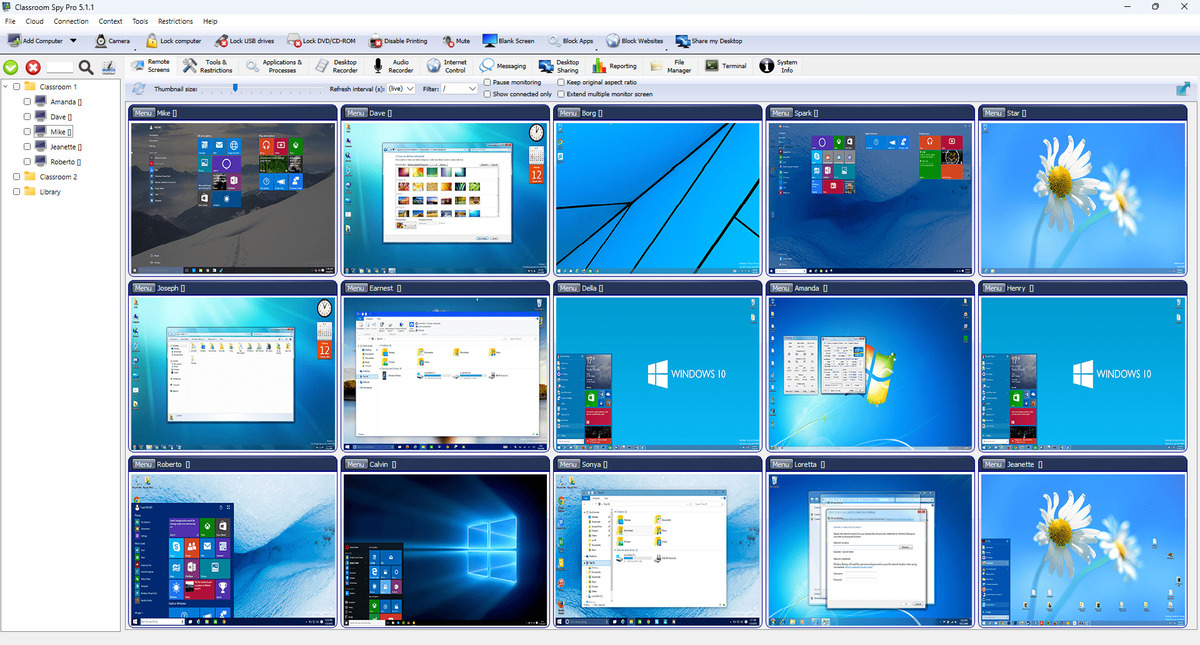
Toolbar Controls
- Refresh: request new frame immediately.
- Thumbnail size: tune layout density versus detail.
- Refresh interval: use live for the most current screen view or a larger interval to reduce network load.
- Filter: show only selected group.
- Keep original aspect ratio: avoids stretched thumbnails.
- Show connected only: hides disconnected computers.
- Extend multiple monitor screen: shows multi-monitor desktop as one extended area.
- Pause monitoring: temporarily freezes updates.
- Full screen: expands monitoring workspace.
Camera Tiles
If student computers have available cameras, camera tiles can be shown near desktop thumbnails. Visibility can be switched globally to show configured cameras, show all, or hide all.
Recommended Workflow
- Select computers/groups in the tree.
- Set refresh interval and thumbnail size for current network conditions.
- Enable connected-only view in large environments.
- Use right-click Object Menu from a thumbnail for quick actions such as Remote Control.
Remote Control
Read a live screen, then check its state
- Live
- Live view: a connected student desktop refreshes at the selected interval. An unchanged image alone does not prove a connection problem; the student may not be moving anything.
- Paused
- Paused view: clear
Pause monitoringbefore judging whether the image is current. UseRefreshafter resuming. - Offline / Blank
- Missing or blank tile: check the selected group and
Show connected only, then the computer’s connection/authentication status. A connected computer with no fresh image needs its display/session and screen-capture permissions checked; an offline computer needs connection troubleshooting. - Unchanged image
- If a connected image stays unchanged after resuming and refreshing, compare it with an action on the student computer before treating it as frozen. Intentional Remote Control screen blanking keeps the console desktop visible; a black console tile is not proof that blanking is working.
Use connection troubleshooting for offline or authentication failures. Open Remote Control for individual assistance. Use Reporting for historical activity; Remote Screens is a live view.