See the teacher console, student screen monitoring, classroom controls and mobile console in action
These Classroom Spy Pro screenshots show how authorized teachers view student computer screens, provide remote help, reduce distractions, share demonstrations, record activity and run classroom administration tools.
Click any thumbnail to open the full-size product screenshot. Desktop images show Windows and macOS interfaces; tablet and phone images show the mobile teacher console controlling supported student computers.
Desktop Screenshots
Explore the main teacher console for live classroom monitoring, computer control, messaging, screen sharing, recording, reporting and restrictions.
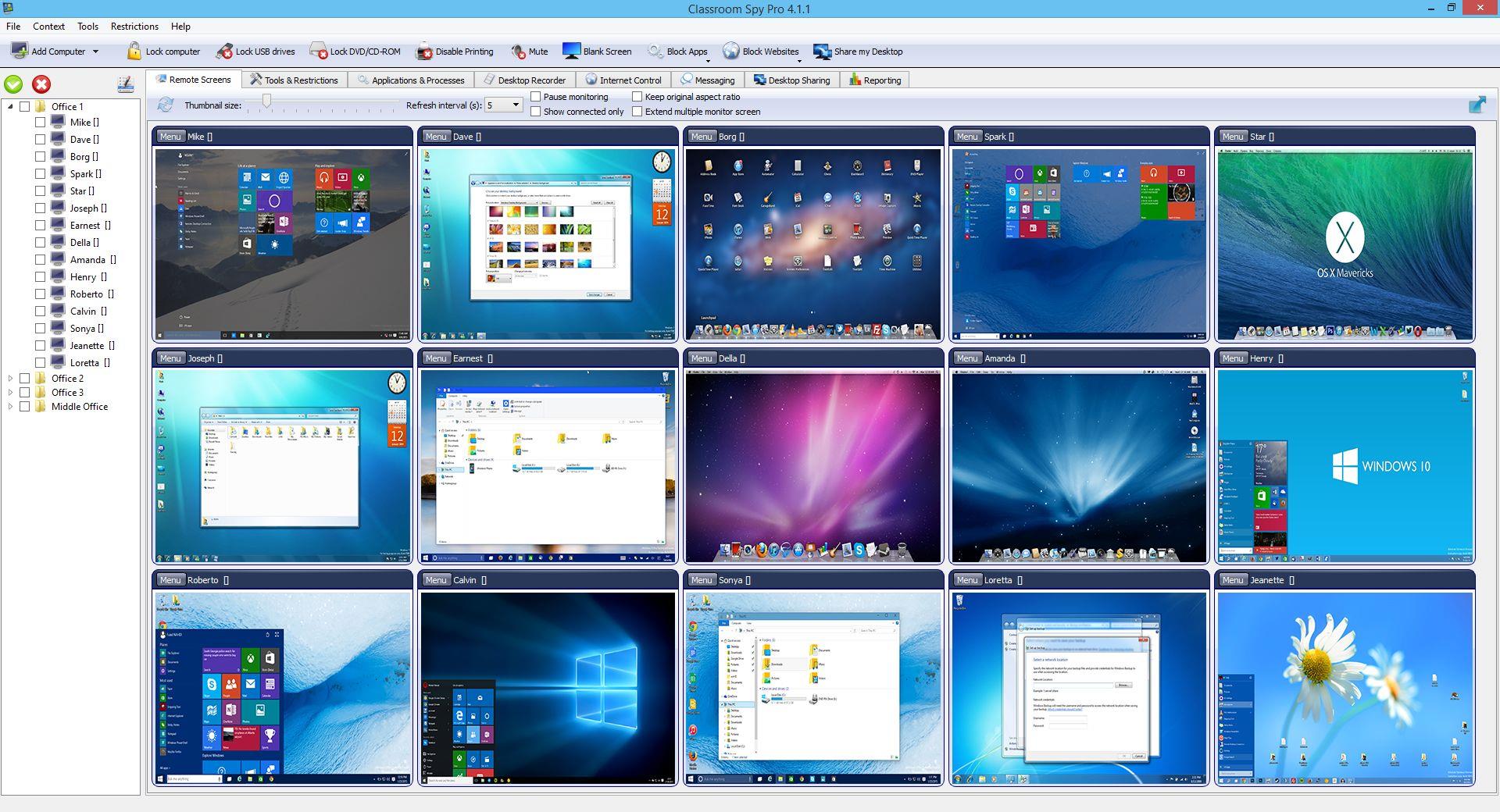 Live student screen overview
 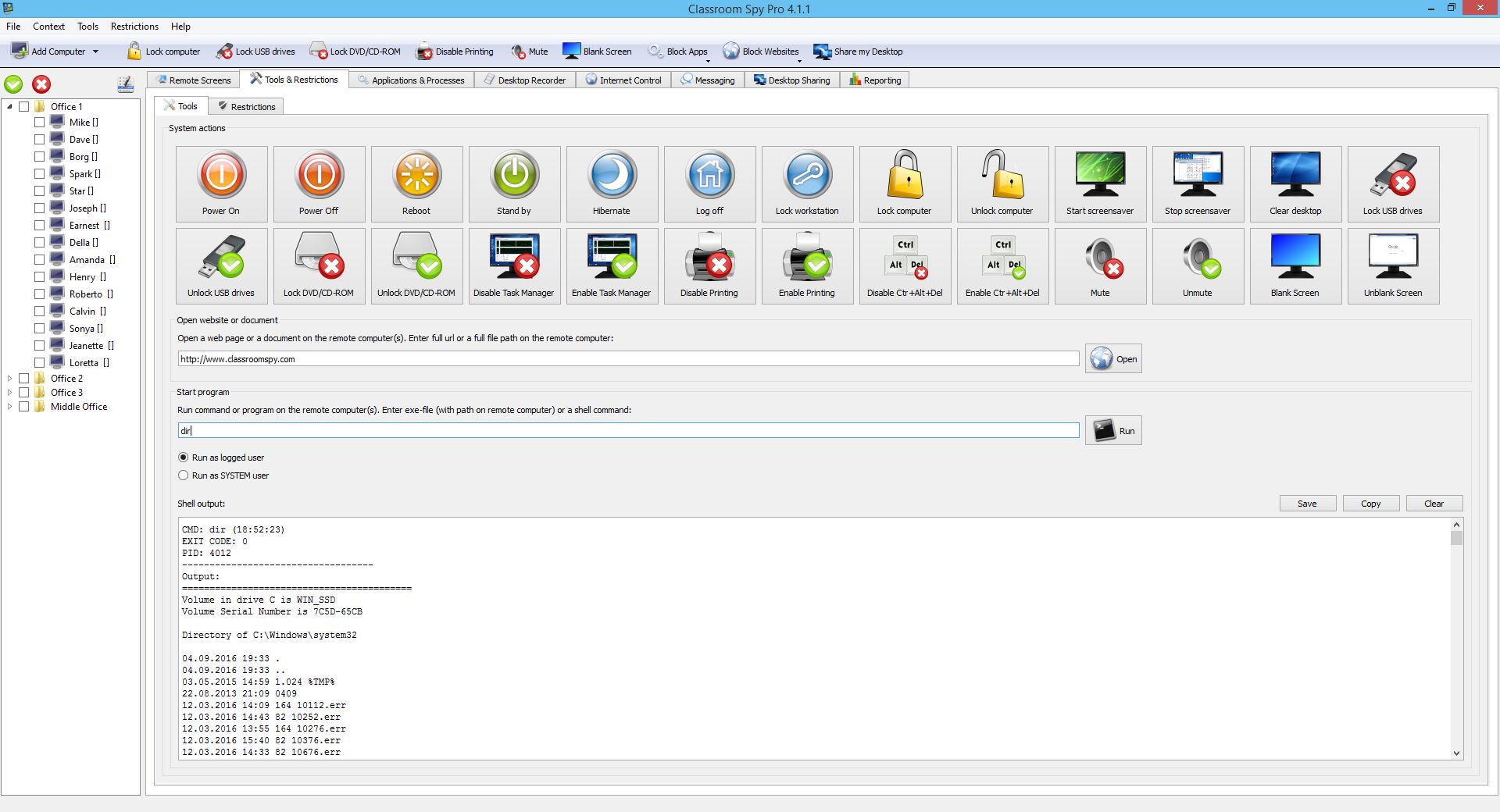 Power, restart and lock tools
 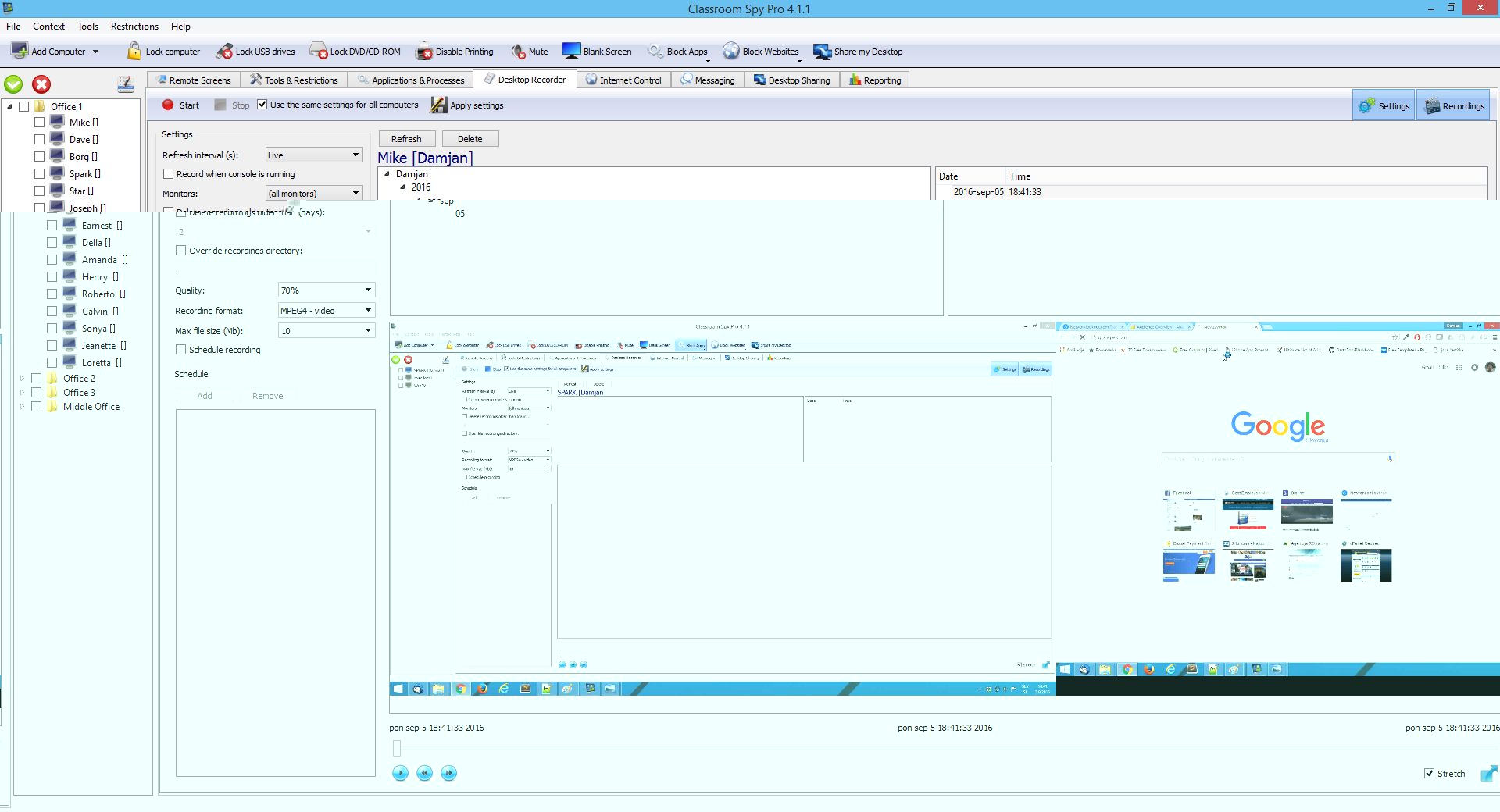 Scheduled student screen recording
 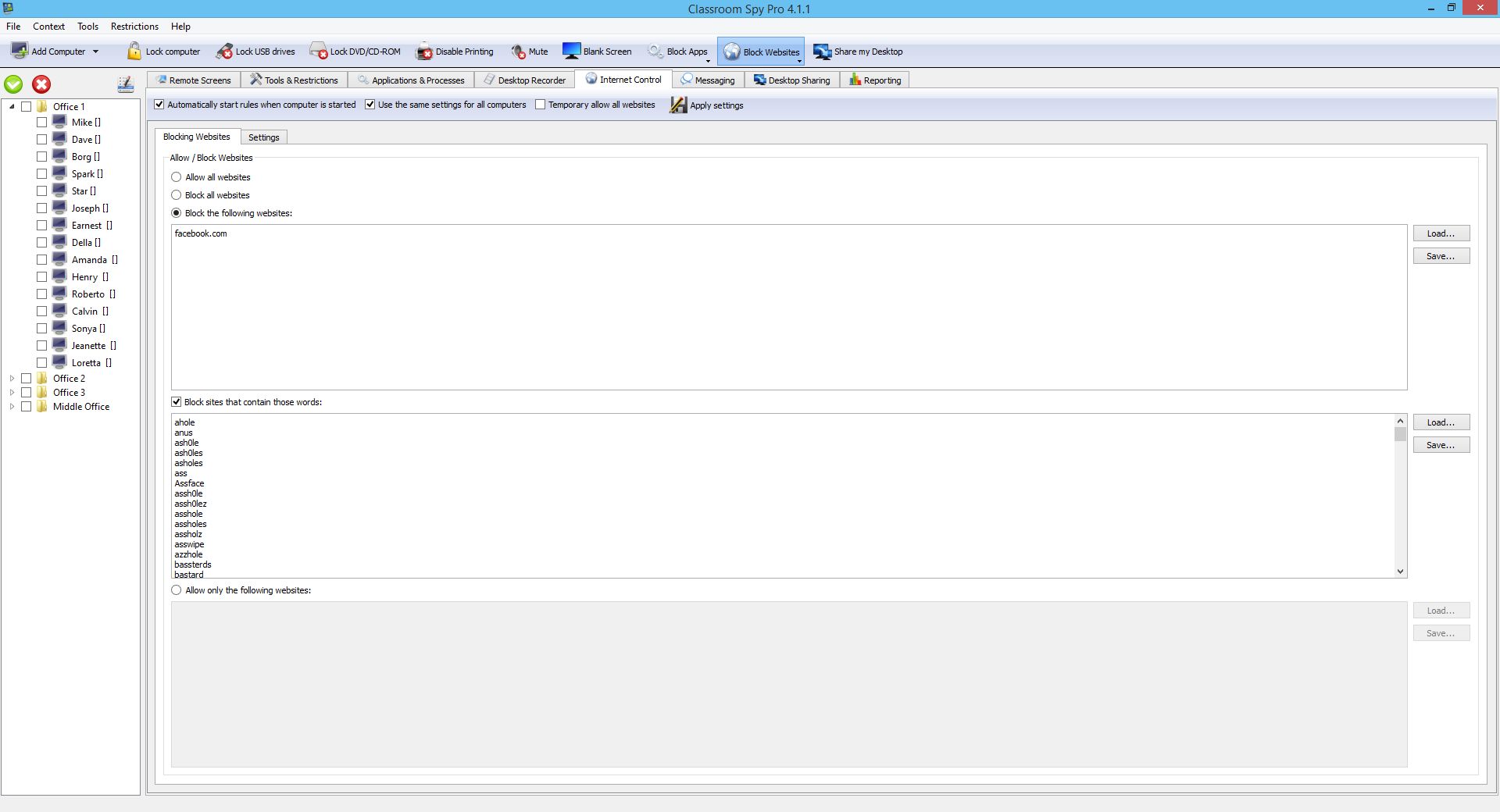 Website and internet controls
 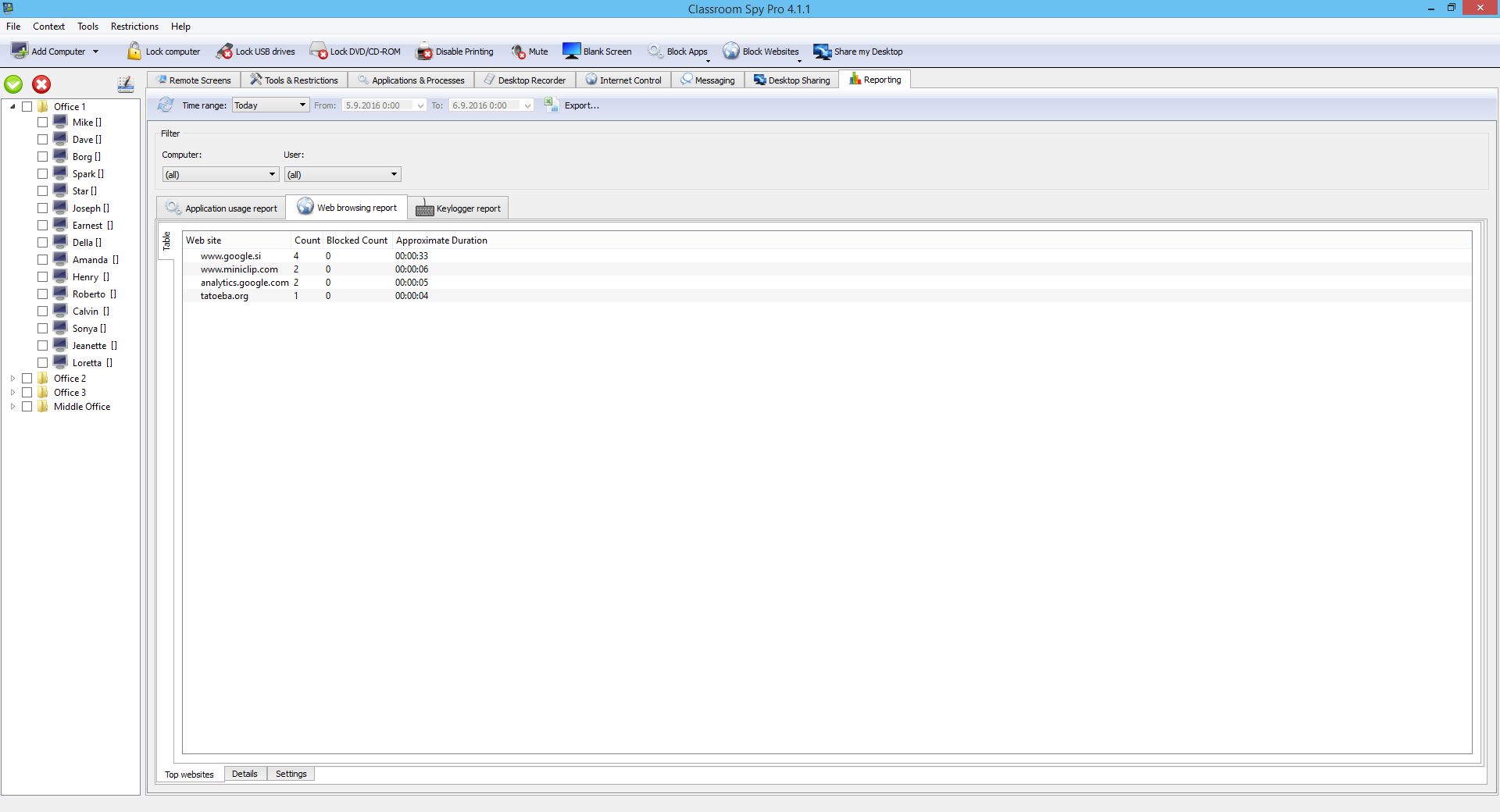 Computer activity logging and reports
 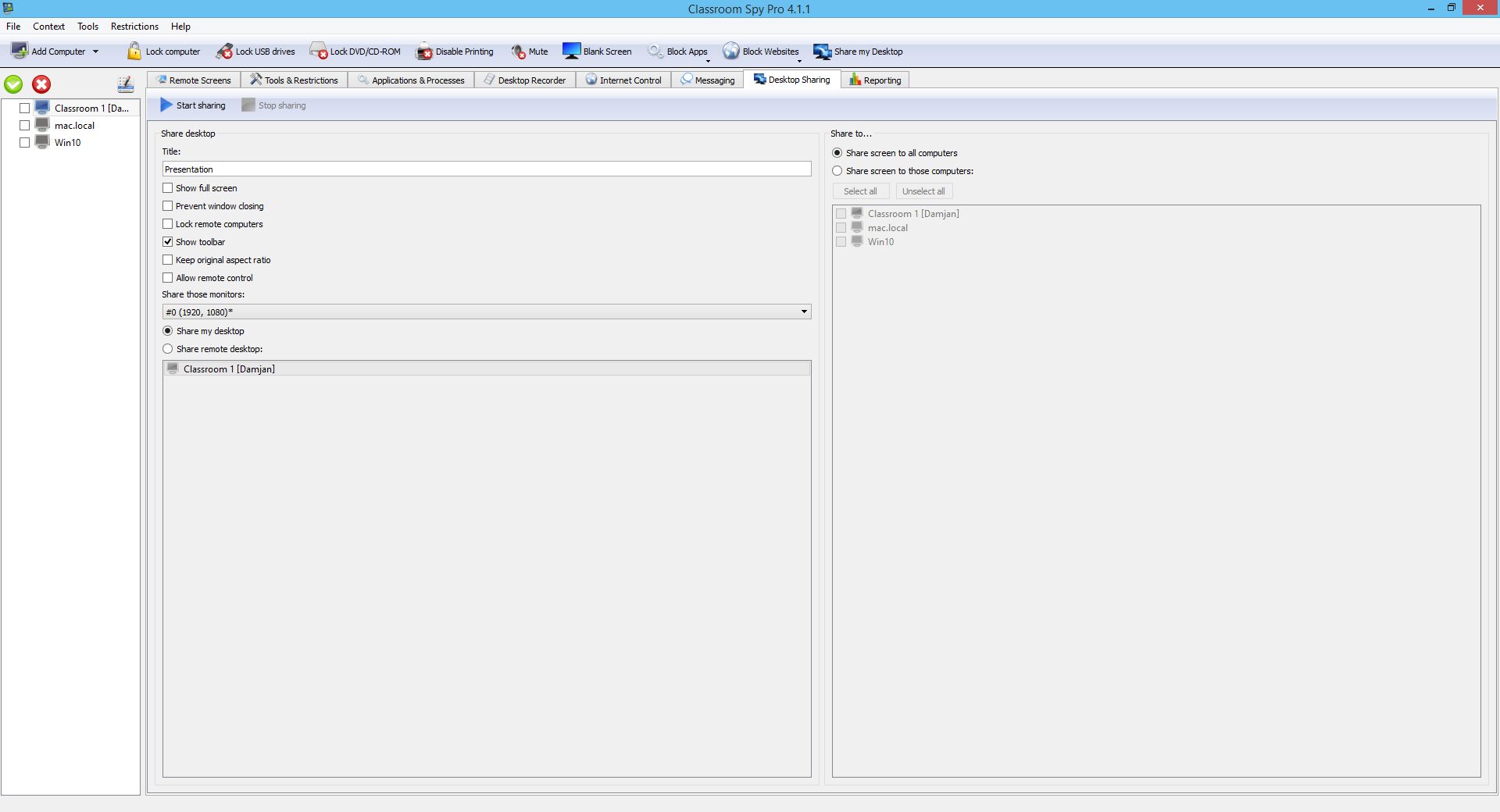 Teacher desktop sharing
 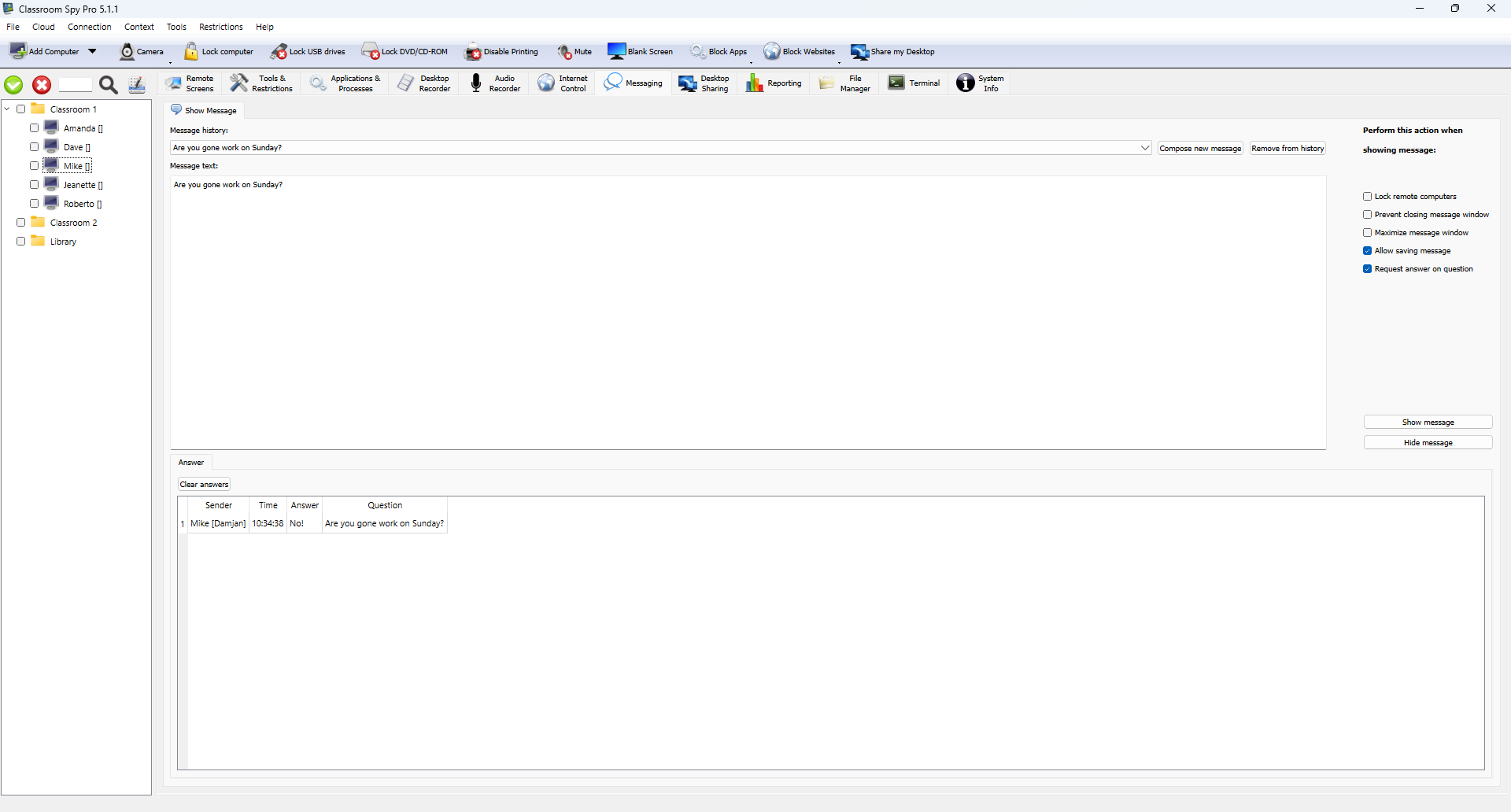 Messages, questions and answers
 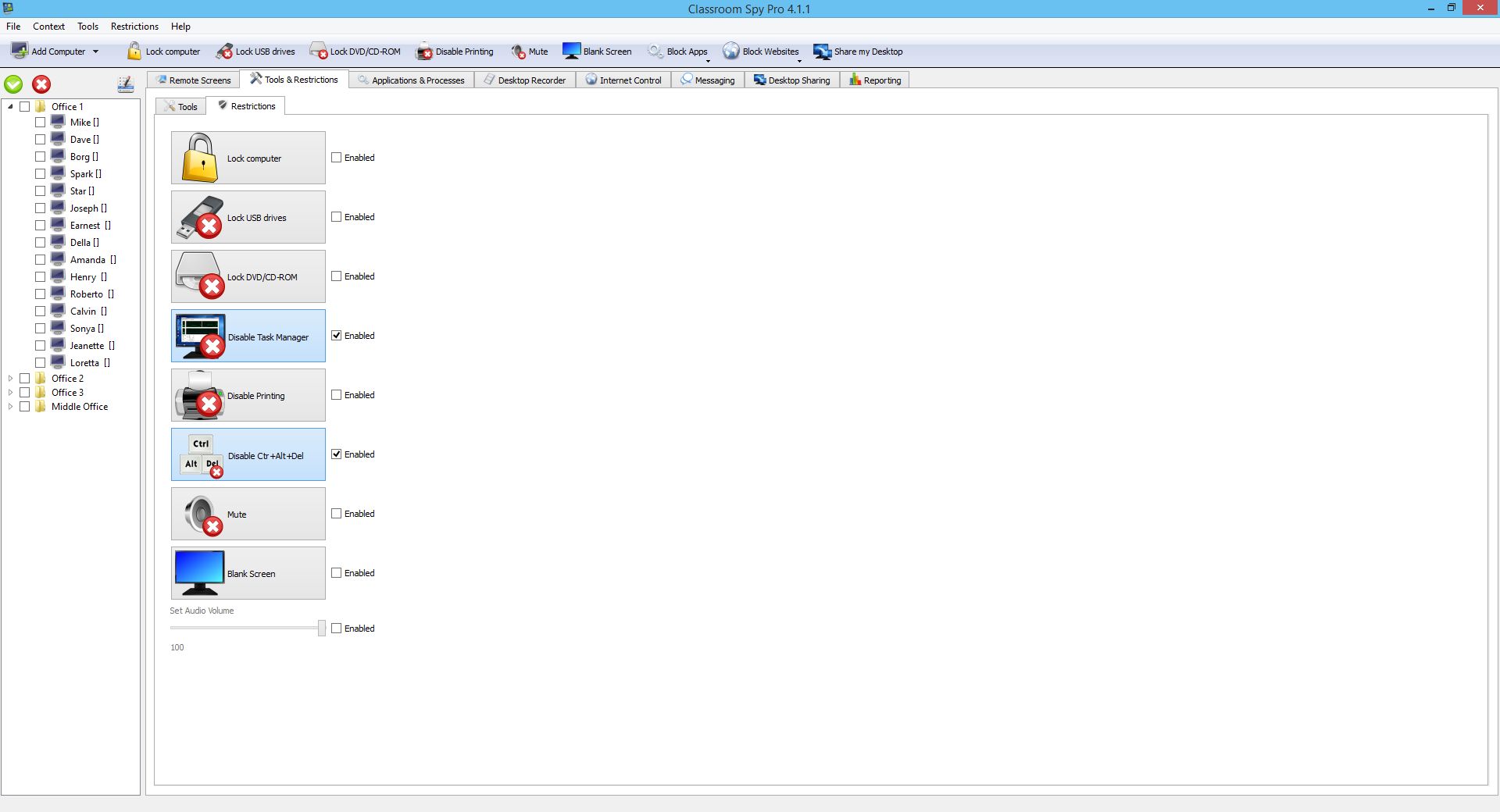 Screen and device restrictions
 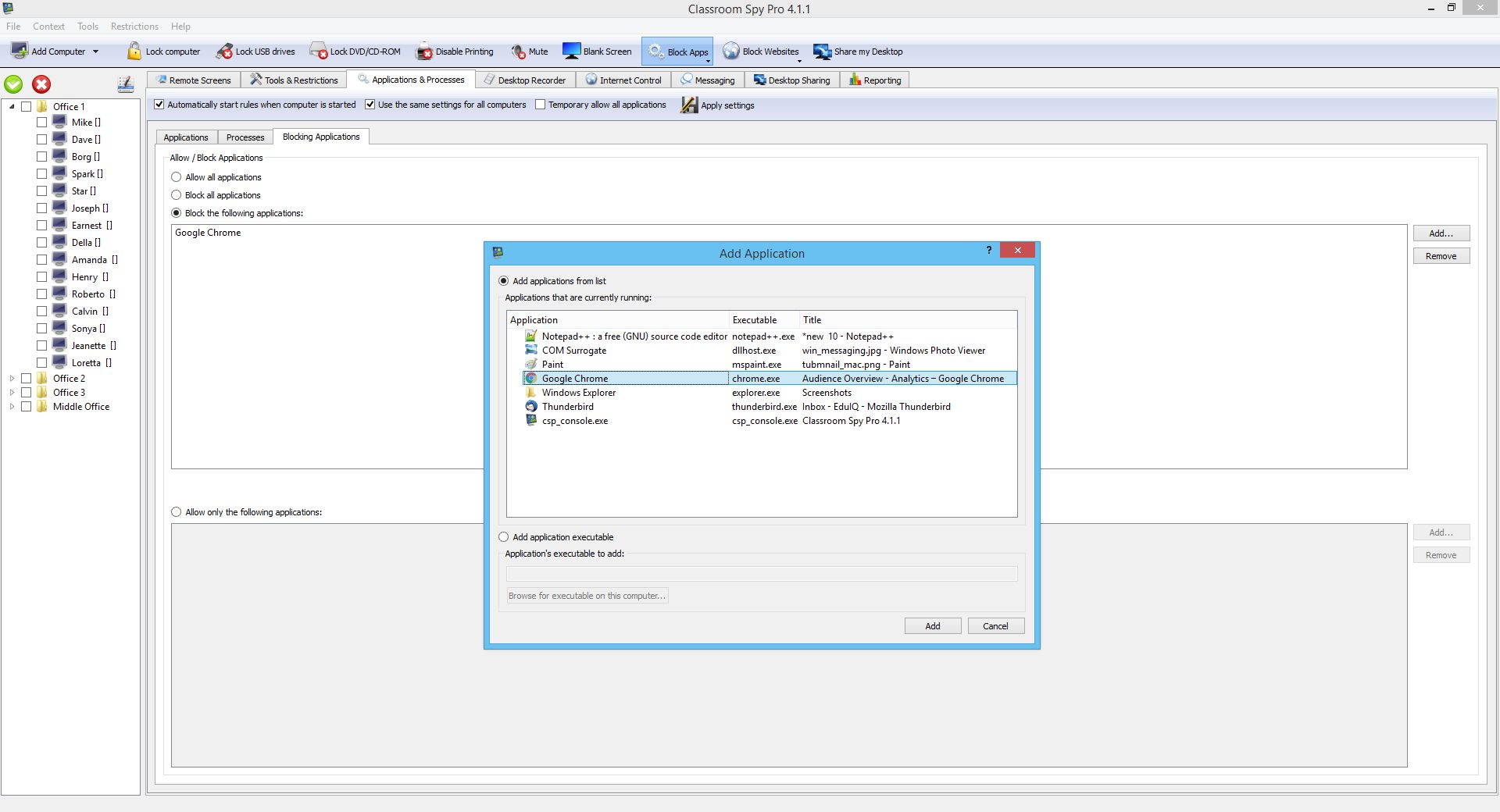 Application restrictions
 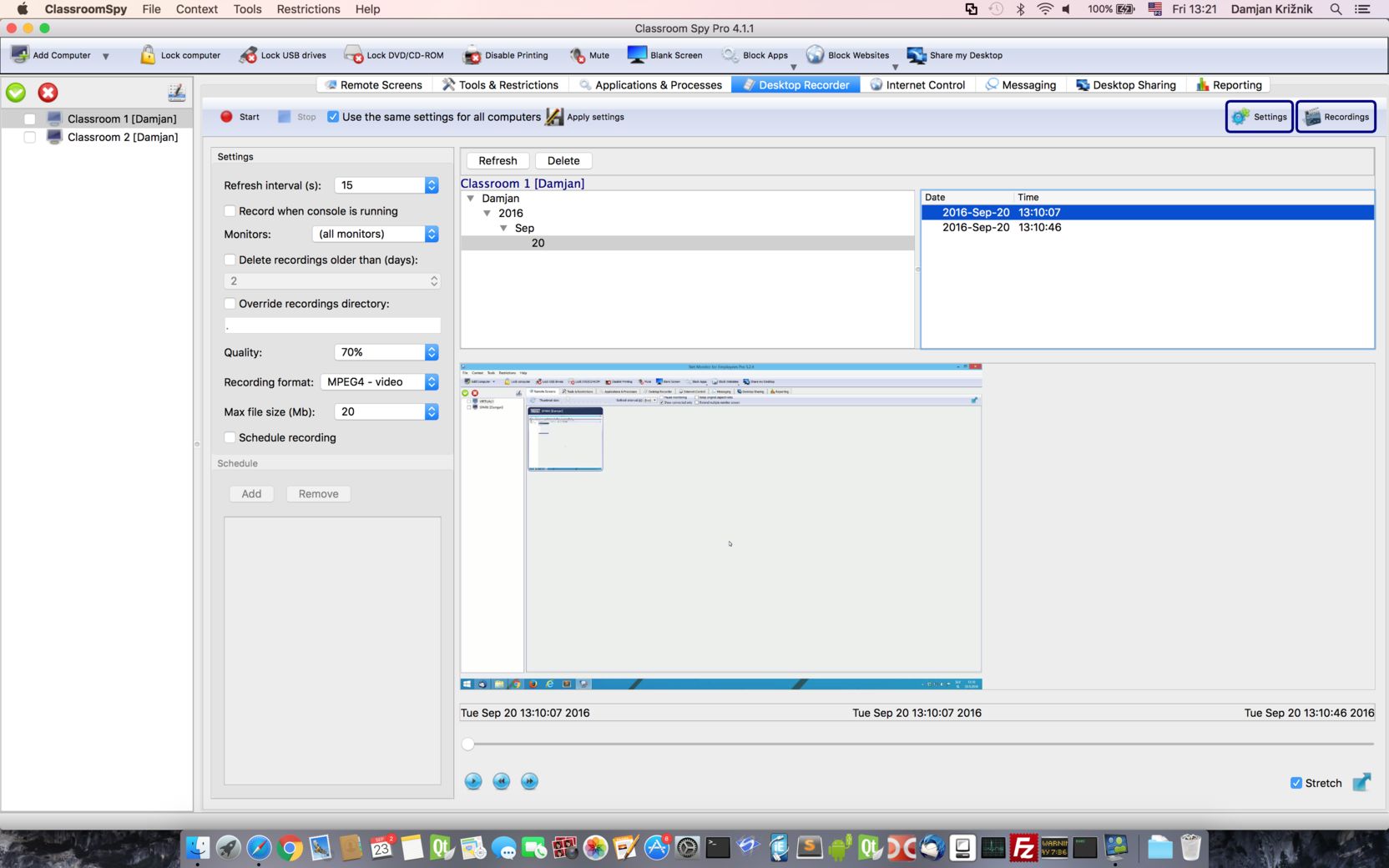 macOS desktop recording
  macOS administration tools
 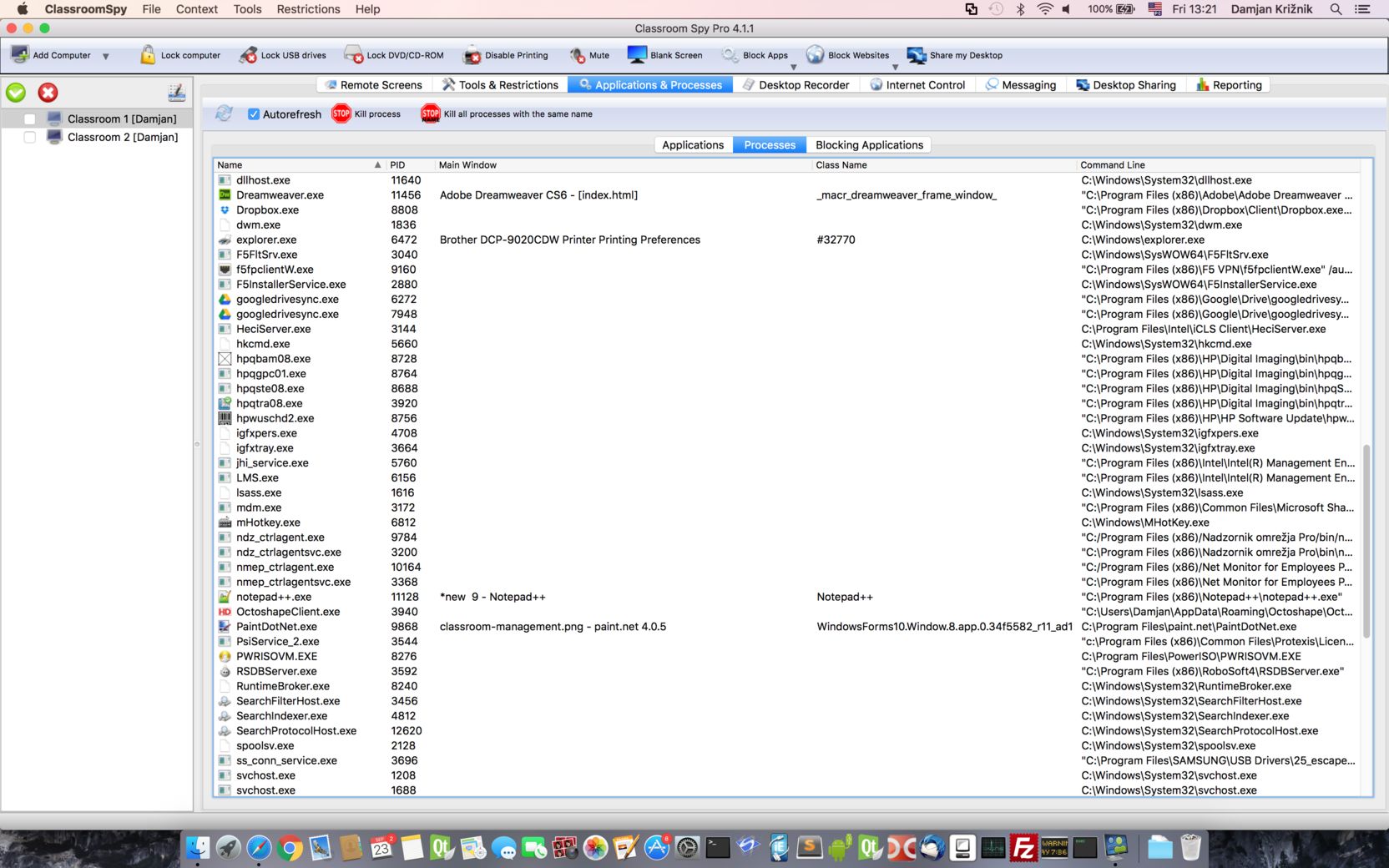 macOS process management
 Tablet Screenshots
The tablet app is a portable teacher console. It lets a teacher move around the room while supervising and controlling connected desktop student computers.
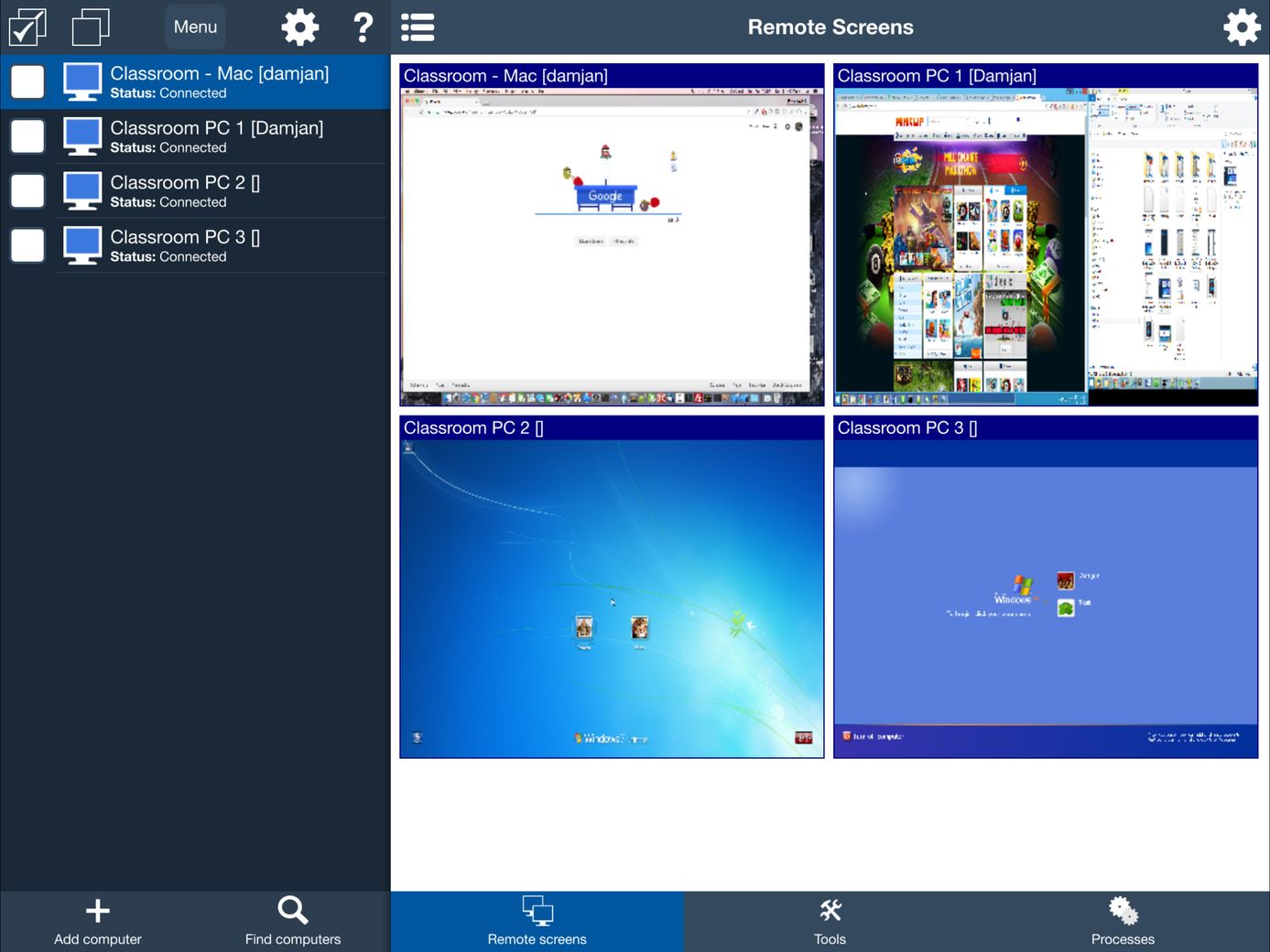 Supervise students from a tablet
 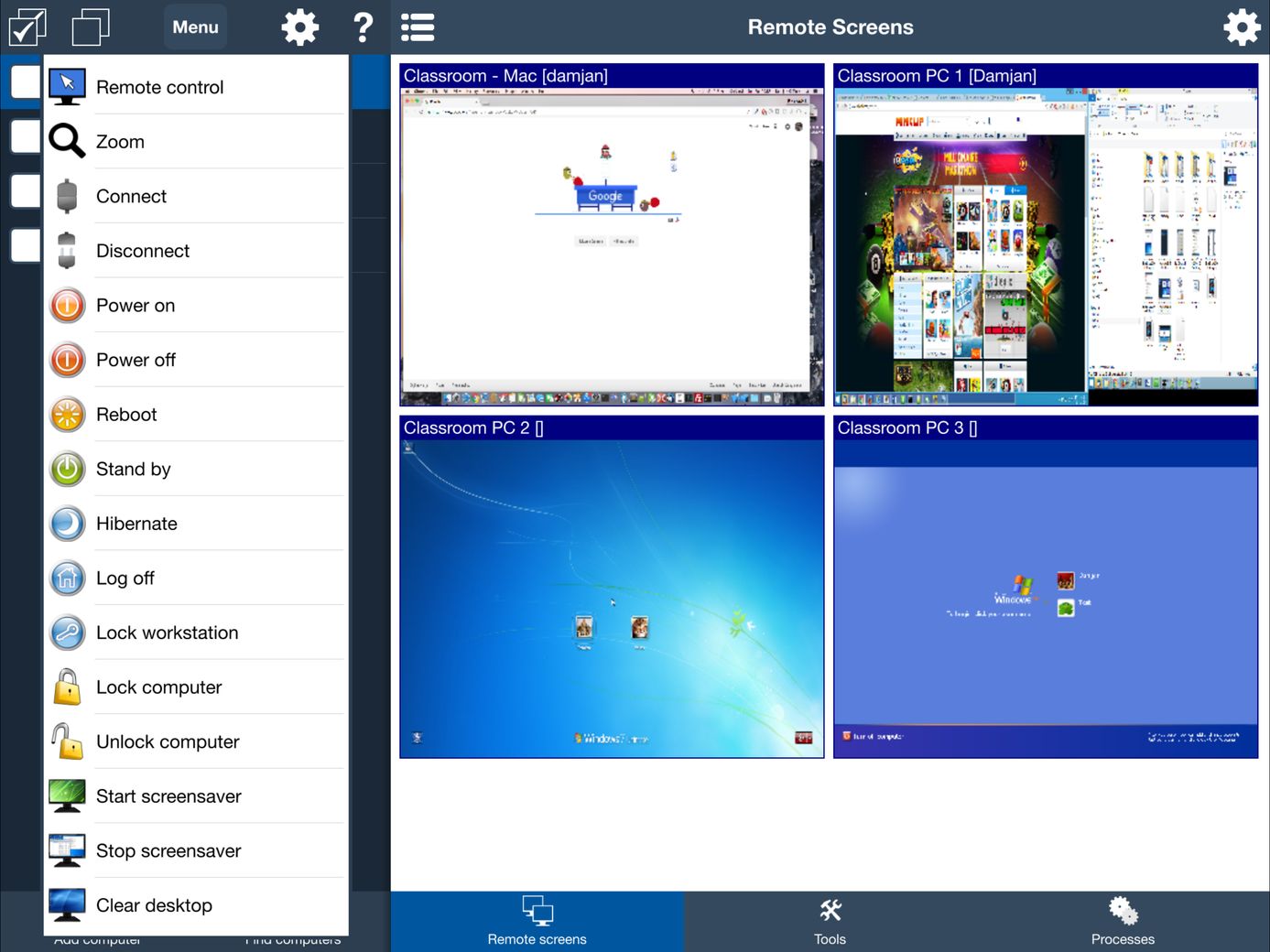 Tablet administration tools
 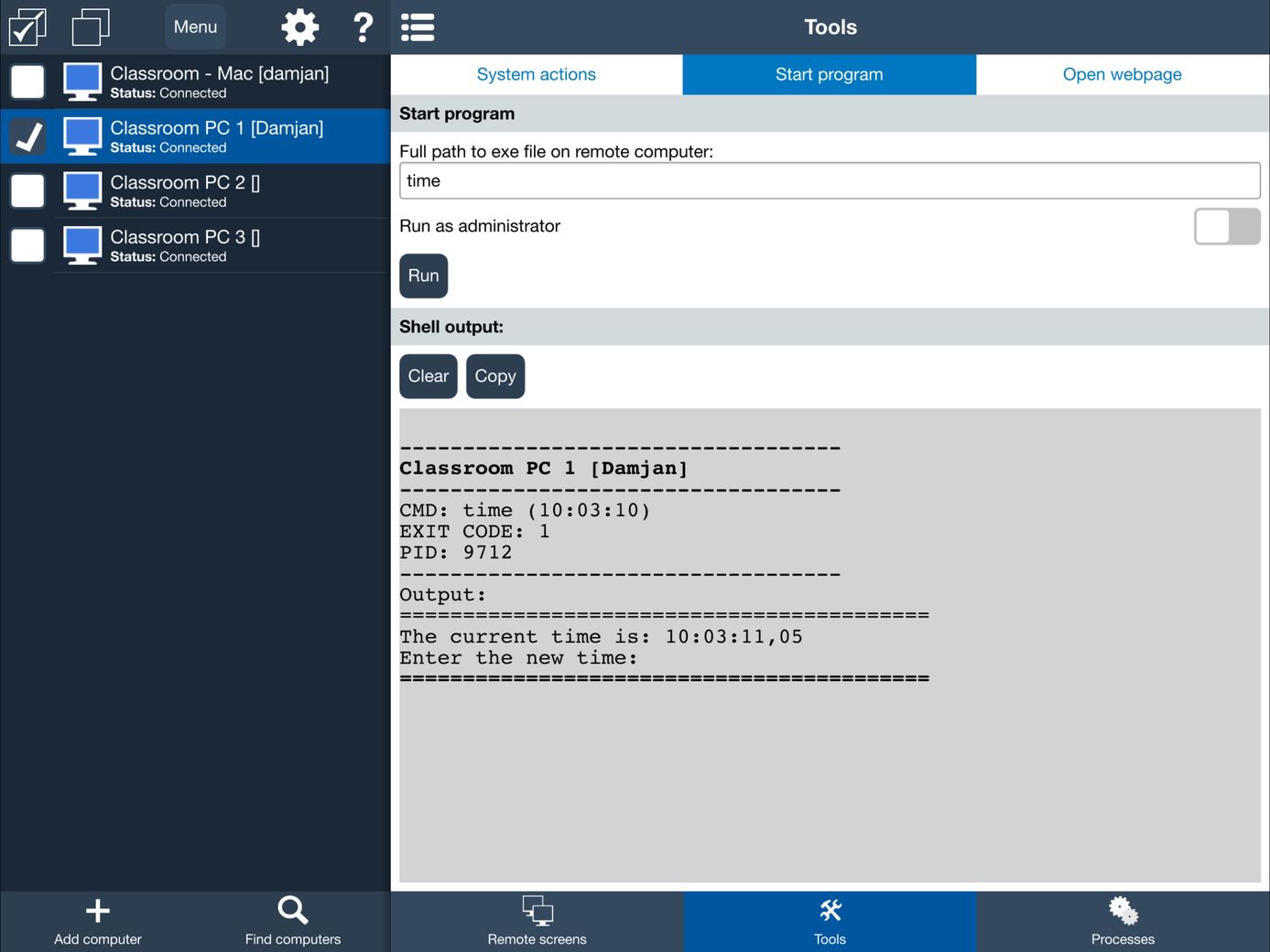 Start a process from the tablet console
 Mobile Phone Screenshots
The phone console provides a compact view of connected users, live screens, running applications, processes and selected computer tools.
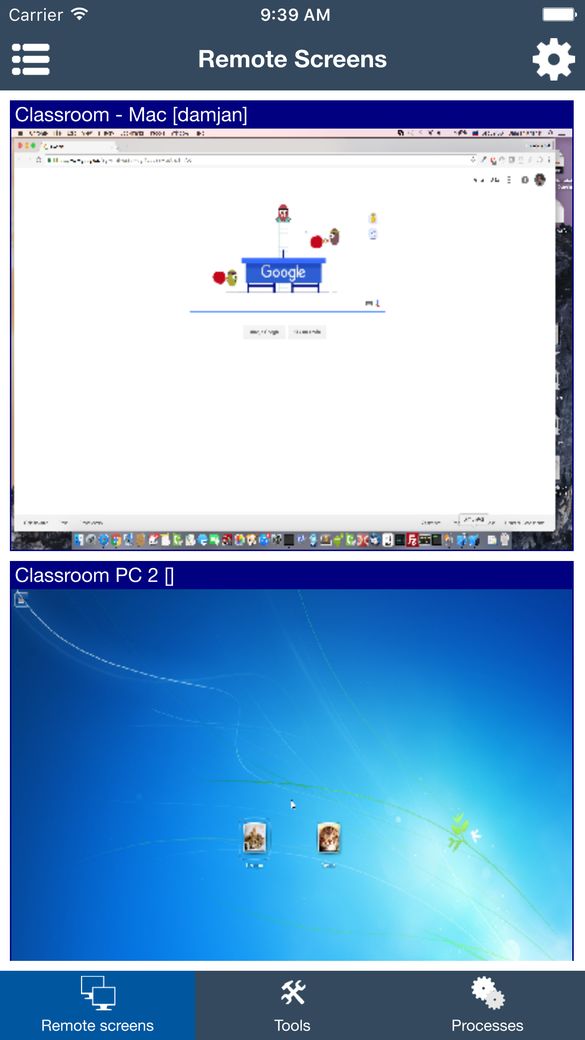 View student screens from a phone
 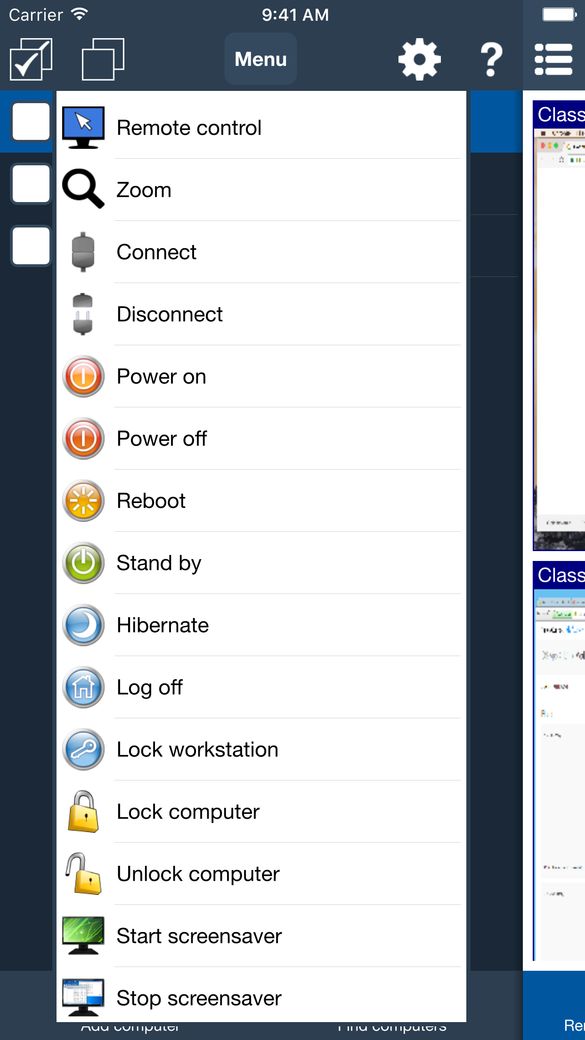 Wake, restart and power tools
 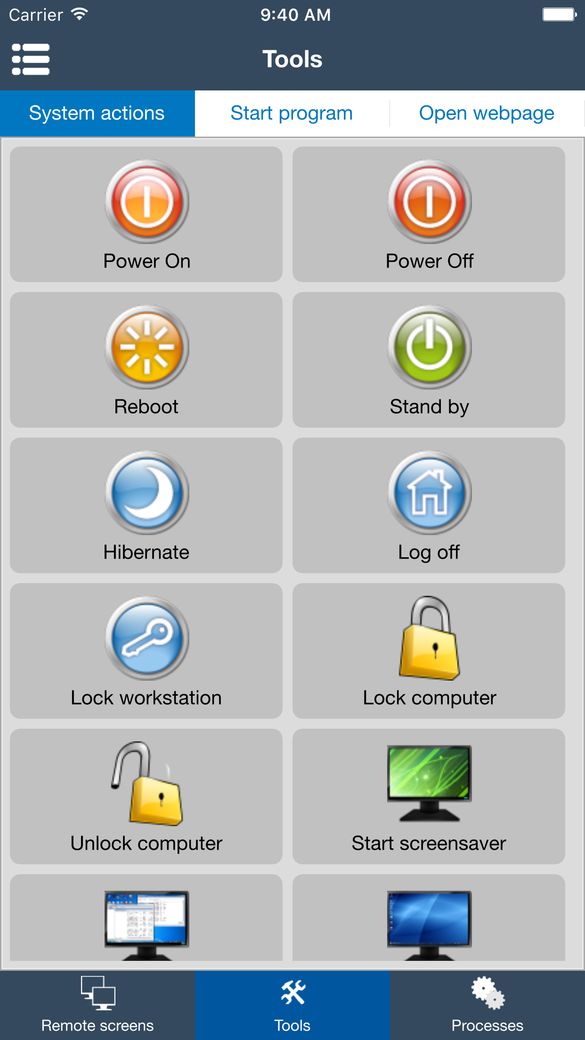 Phone administration tools
 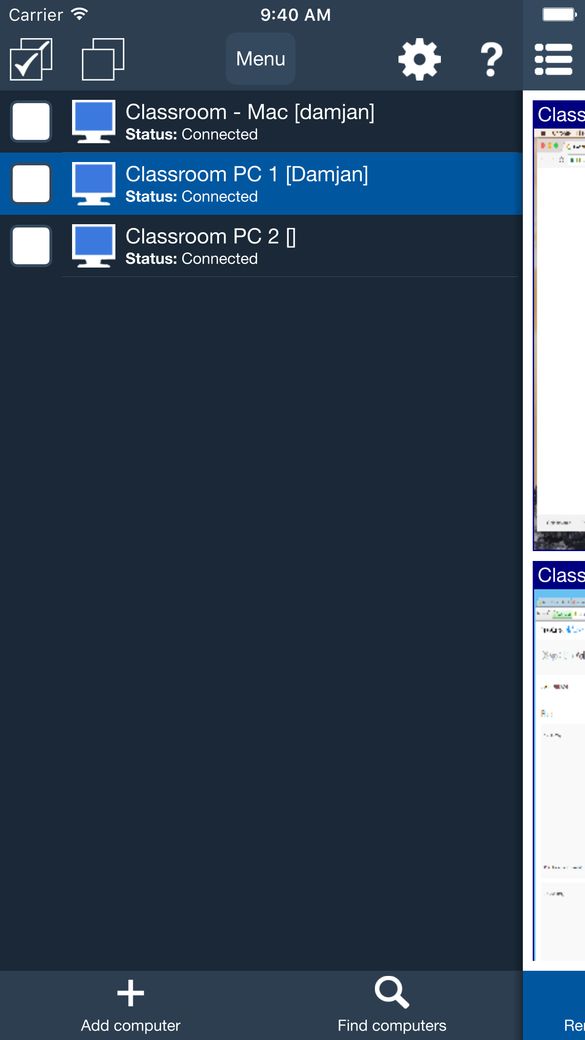 Supervise connected users
 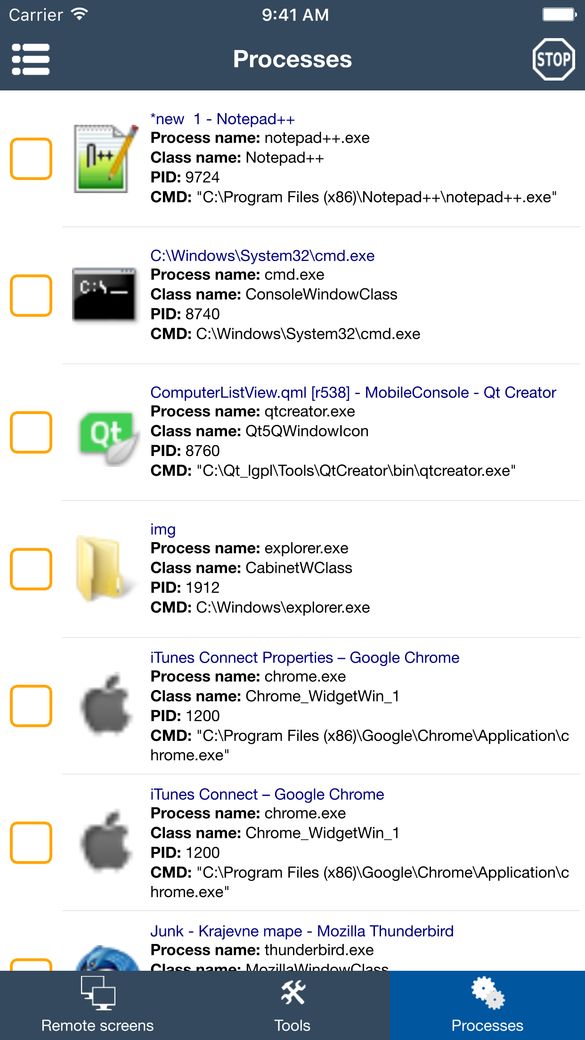 View running applications
 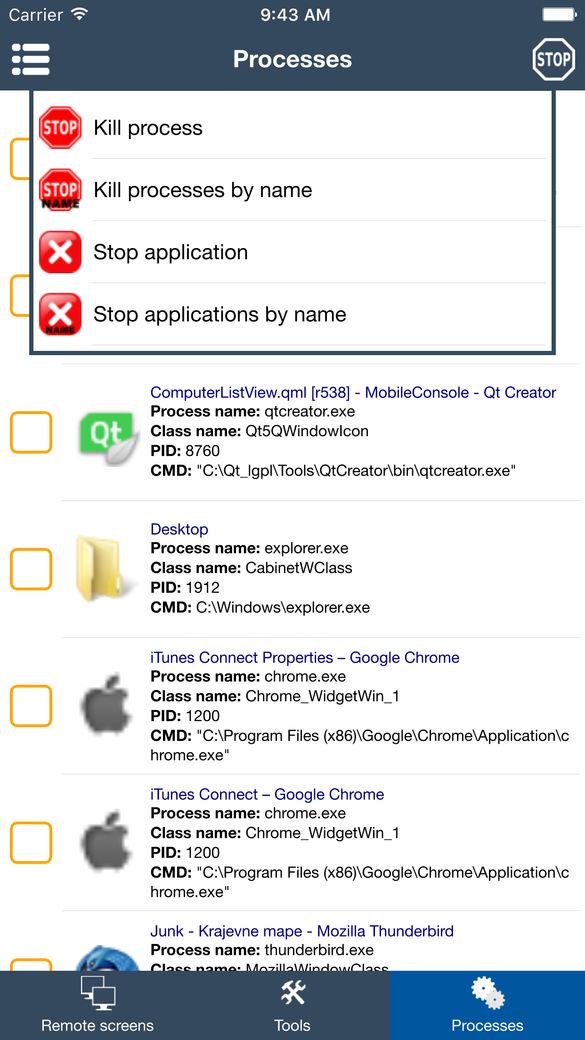 Stop a selected process
 What the Classroom Spy Pro Interface Shows
These screenshots show how teachers can monitor classroom computers, assist individual students, share demonstrations, reduce distractions and perform common administrative tasks from one console.
Monitor Student Screens and Provide Remote Help
Remote Screens displays live thumbnails of connected student computers in the teacher console. A teacher can enlarge one screen and begin remote keyboard and mouse control when a learner requests assistance.
Learn about live student screen monitoring and remote computer assistance.
Reduce Website and Application Distractions
The restriction views show controls for allowed or blocked websites, applications, processes, screens and selected computer resources. Schools decide which restrictions are appropriate for a lesson and document their use in school policy.
Communicate and Share Demonstrations
Teachers can send messages or written questions to selected computers and review submitted answers. Desktop Sharing can show the teacher desktop - or one selected remote desktop - to connected student computers during a demonstration.
Record, Review and Administer Managed Computers
Authorized users can record selected screens manually or by schedule, review configured activity reports, and run tools such as wake, restart, shut down or lock. Recording and reporting are optional; the school controls access and retention.
Review screen recording options and reporting and retention settings.
Use These Screenshots to Plan a School Trial
Before purchasing, test the software with a small group of school-managed computers and verify:
- the teacher console provides the monitoring and teaching tools your staff needs;
- the student operating systems and network model are supported;
- IT can deploy and password-protect agents using the school’s preferred method;
- teachers understand which controls should be used during a lesson; and
- privacy notices, access permissions and retention rules are documented.
Continue with the free evaluation download, compare license options, or review the privacy and GDPR guidance.
Try Classroom Spy Pro Today
Download our free trial or buy a license to get started.