
5 Computers License
$299.95
- Monitor 5 computers
- Unlimited Admin Consoles
- Perpetual License
- Free Email Support
CLASSROOM MANAGEMENT, SIMPLIFIED
See every student screen. Keep distractions in check. Give students the help they need, right when they need it. Bring your classroom together with Classroom Spy Pro.
Free evaluation. Direct download. Start with your classroom.
Your school. Your choice.
One-time purchase or flexible cloud subscription.
Buy once. Use it for years.Perpetual licenses that never expire
More teachers. No extra console fees.Unlimited admin consoles with every license
A little help goes a long way.Free email support included
Windows 7, 8, 8.1, 10, 11 (32/64 bit)
macOS 10.13 and up
Linux (X11 and Wayland)
Chrome OS (Chromebook)
iOS (iPhone / iPad)
Android
(Console only, monitoring of mobile devices is not supported)
LESS MANAGING. MORE TEACHING.
Everything you need to manage your classroom and keep students on track.
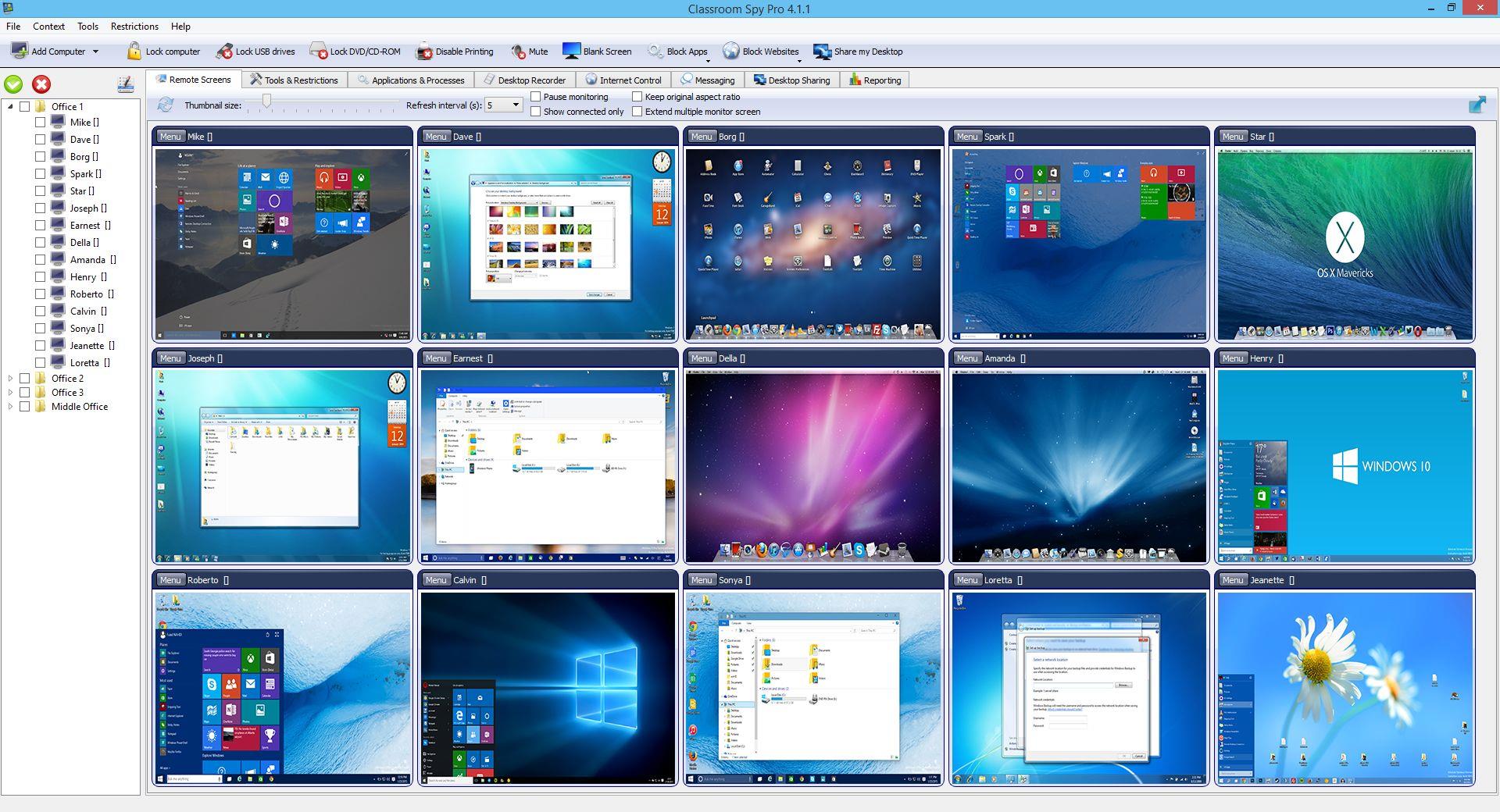
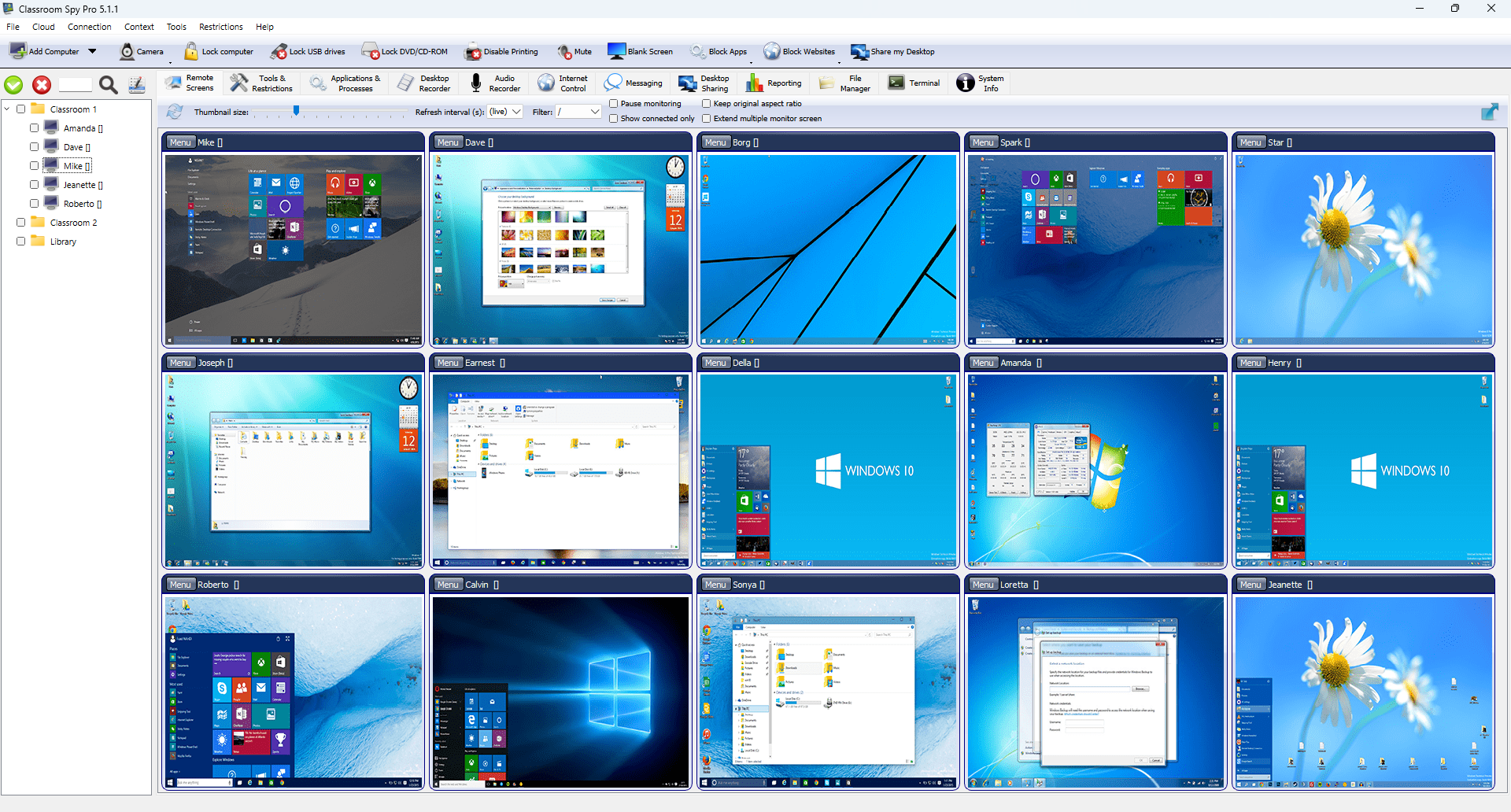
View all student screens in real-time to ensure they are on task.
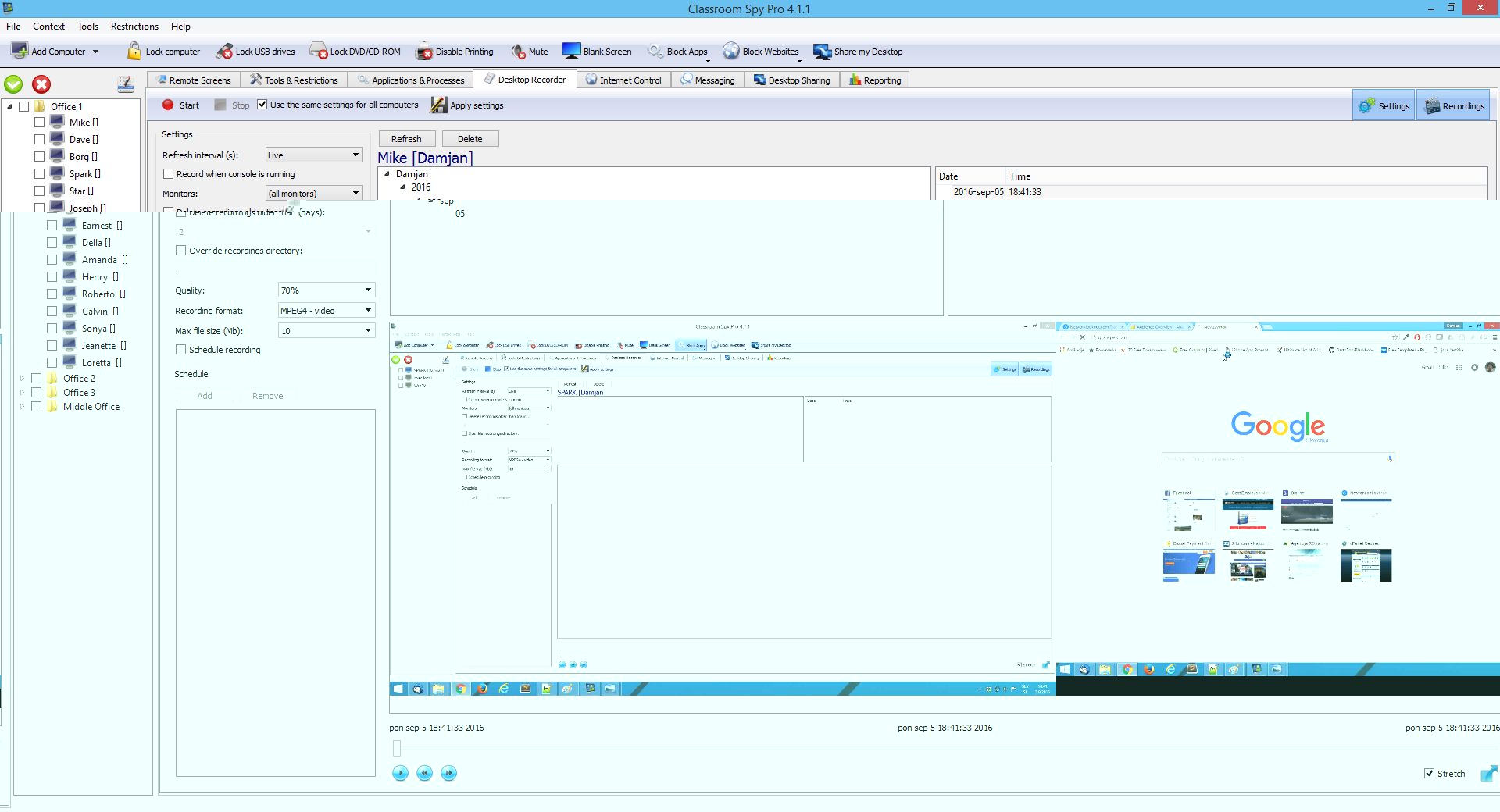
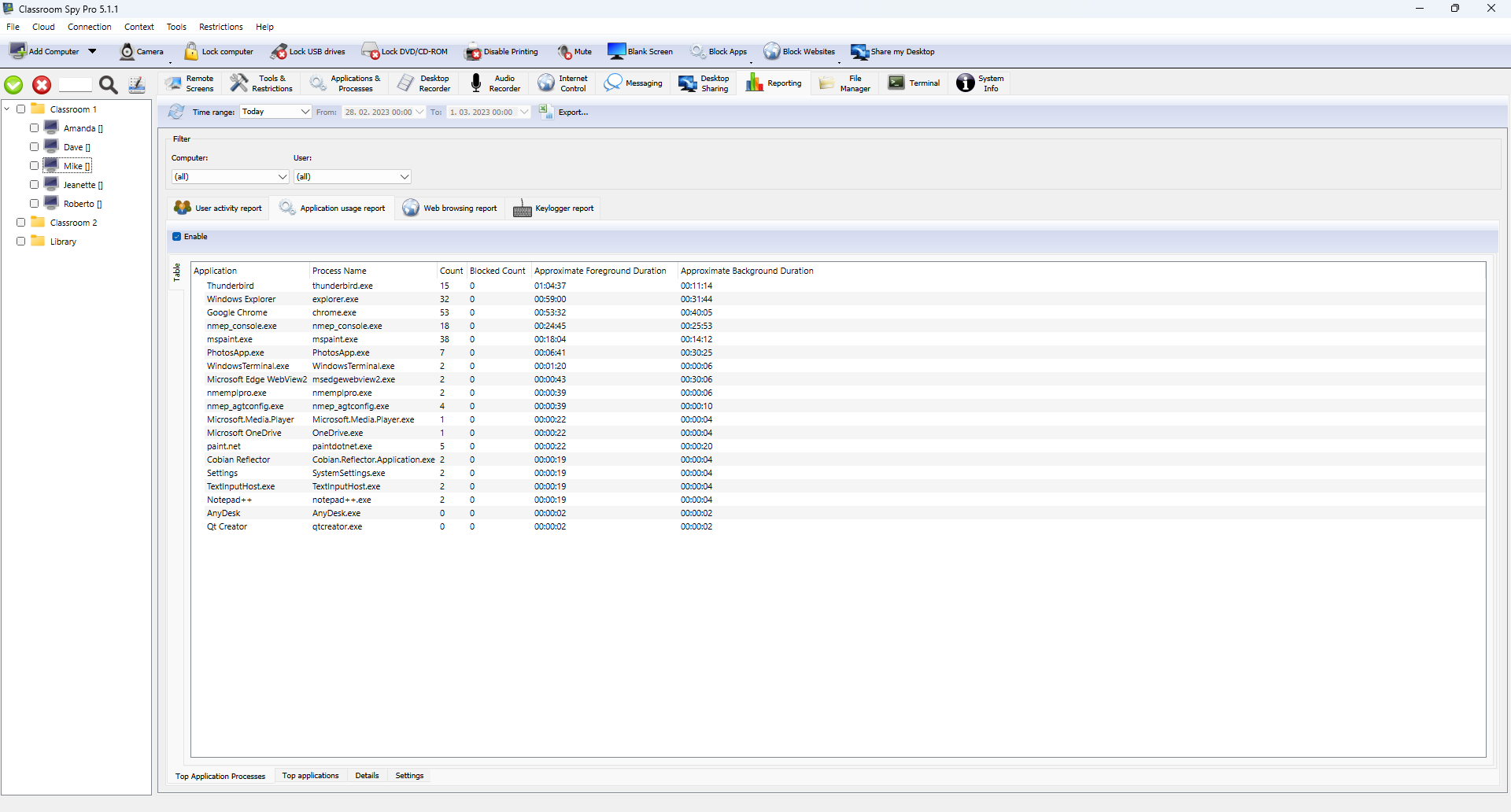
Record student activity to review later or for disciplinary purposes.
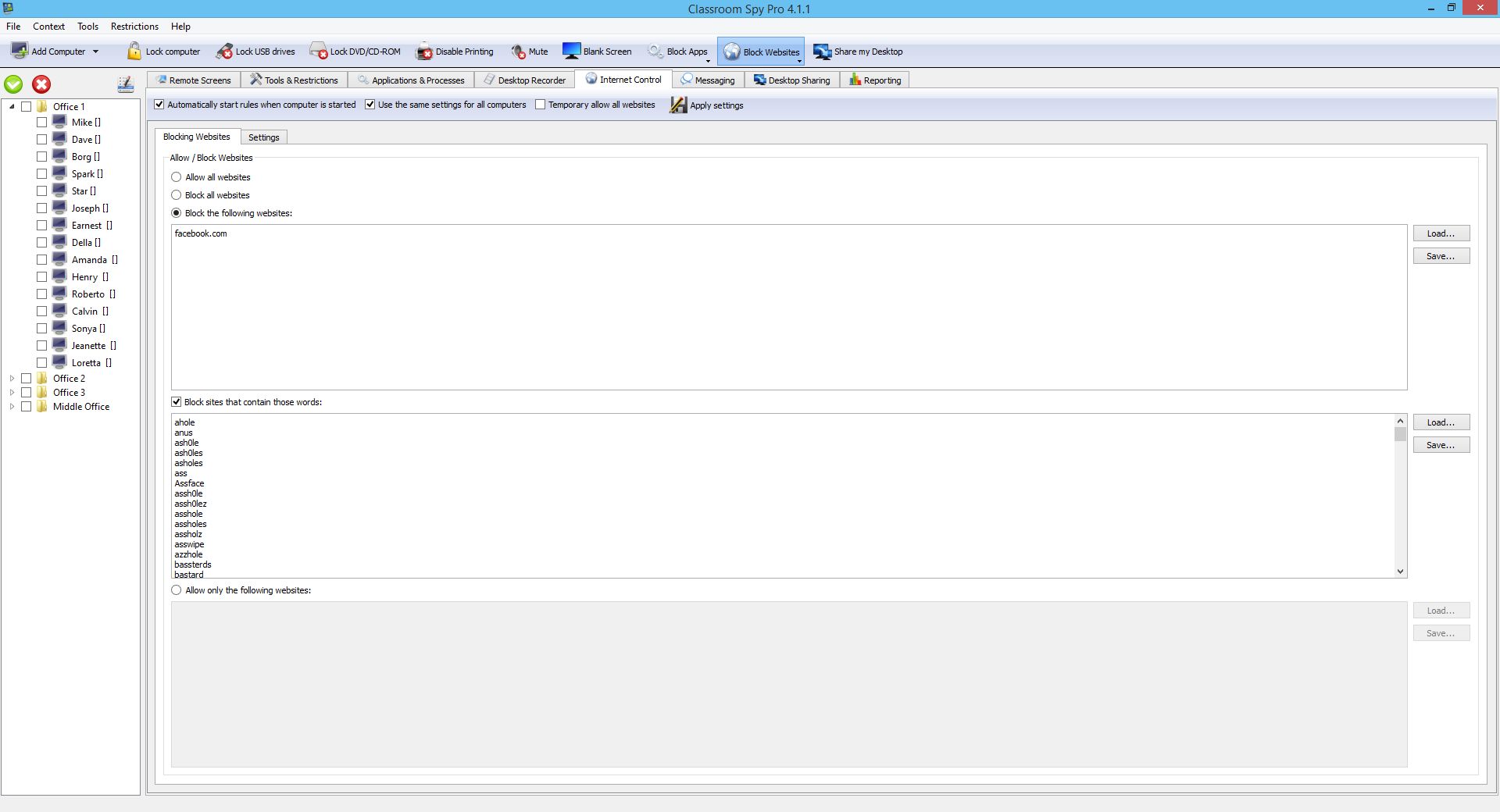
Block access to distracting websites and applications to keep students focused.
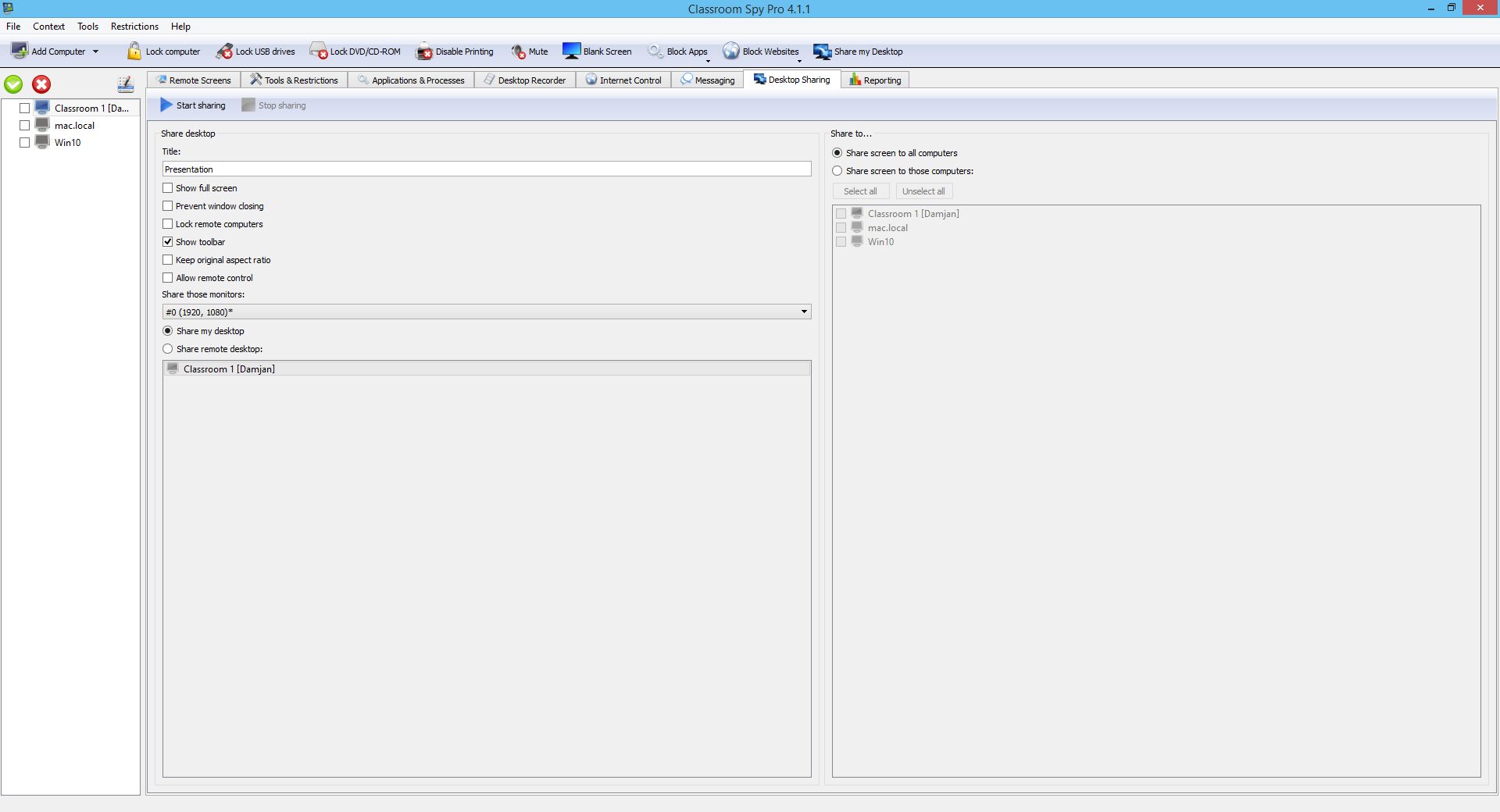
Share your screen with students to demonstrate lessons and concepts.
Classroom Spy Pro is classroom management software for schools, training rooms and computer labs. Authorized teachers can view live student screens, control computers remotely, block distractions, share demonstrations and manage devices over LAN, WLAN, VPN or the internet.
Choose a perpetual on-premises license or an optional cloud subscription. Public pricing and direct downloads are available.
A CLEAR CONNECTION. A BETTER LESSON.
See what each tool does, then open its setup guide for controls, scope and platform details.
Choose the perfect plan for your school or district. We offer also one-time payment and unlimited licenses.
Whether you prefer a one-time payment Perpetual license for lifetime use or a Cloud subscription license for seamless computer monitoring over the internet, we have an option that fits your needs and budget.
Software license is perpetual and never expires. You don't need to renew it. It is not a subscription. This license is intended to be used only on a local network (LAN, WLAN, VPN) and does not support Cloud connection.
Cloud license allows you to monitor your computers over the Internet or other Internet-connected networks. This is possible because the application uses our Cloud server. The license is subscription based. Cloud license can be also used on a local network (LAN, WLAN, VPN). Cloud license can be used in commercial or educational organizations.
Move around the classroom while viewing and managing connected student computers from an iPhone, iPad or Android device. The mobile apps are teacher consoles and do not monitor phones or tablets.

Classroom management is the process of creating an organized, focused and engaging learning environment where teachers can run lessons smoothly and students can work productively.
In computer-based lessons, classroom management also means guiding how school devices are used. Classroom Spy Pro gives authorized teachers one console for supervising student computers, assisting learners and reducing digital distractions.
Effective digital classroom management combines clear expectations with timely teacher support. Technology should help the lesson rather than compete for attention, and monitoring tools should be used proportionately, transparently and according to school policy.
See live student screens and recognize when someone needs guidance.
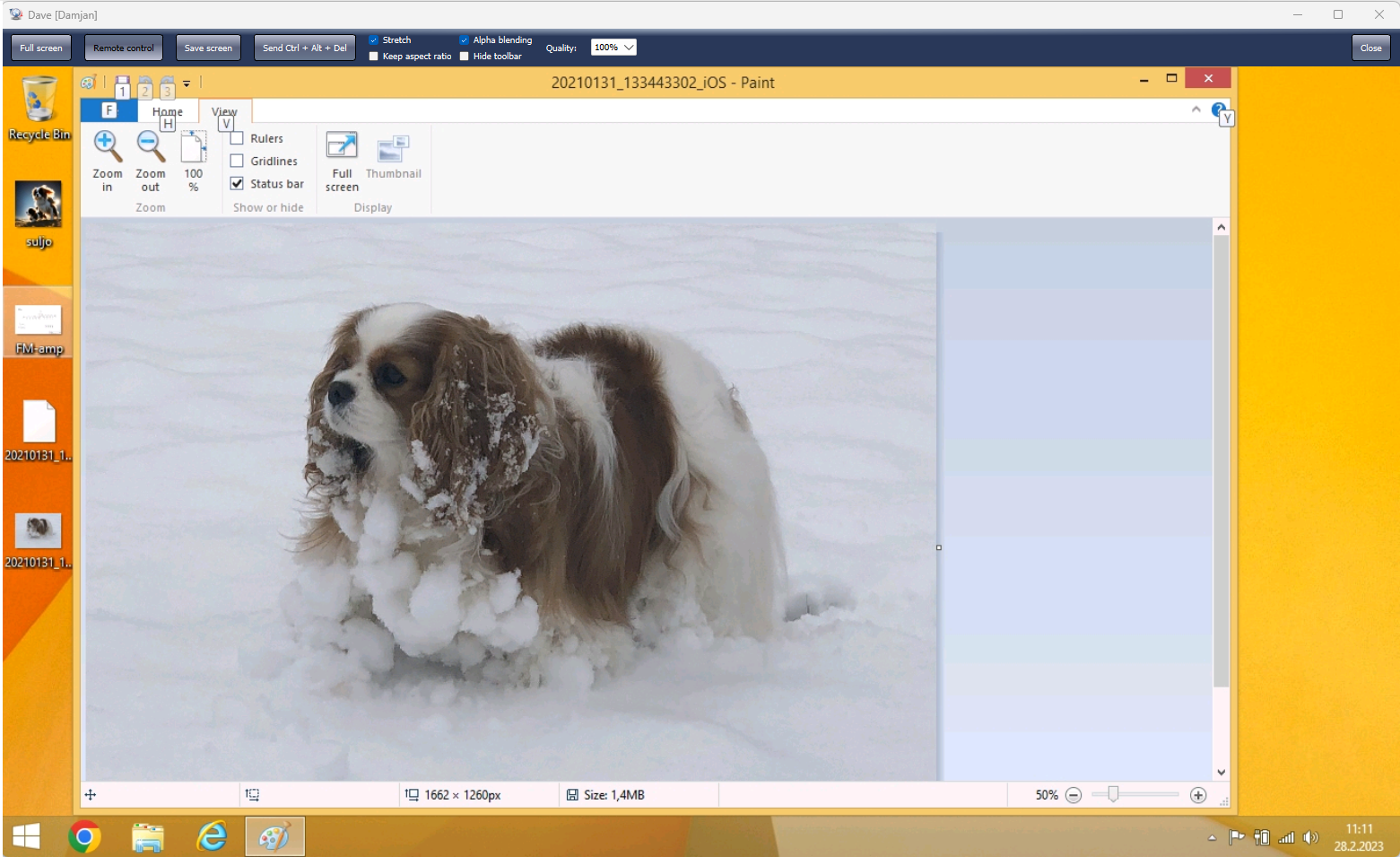
Send instructions, request answers or provide remote assistance.
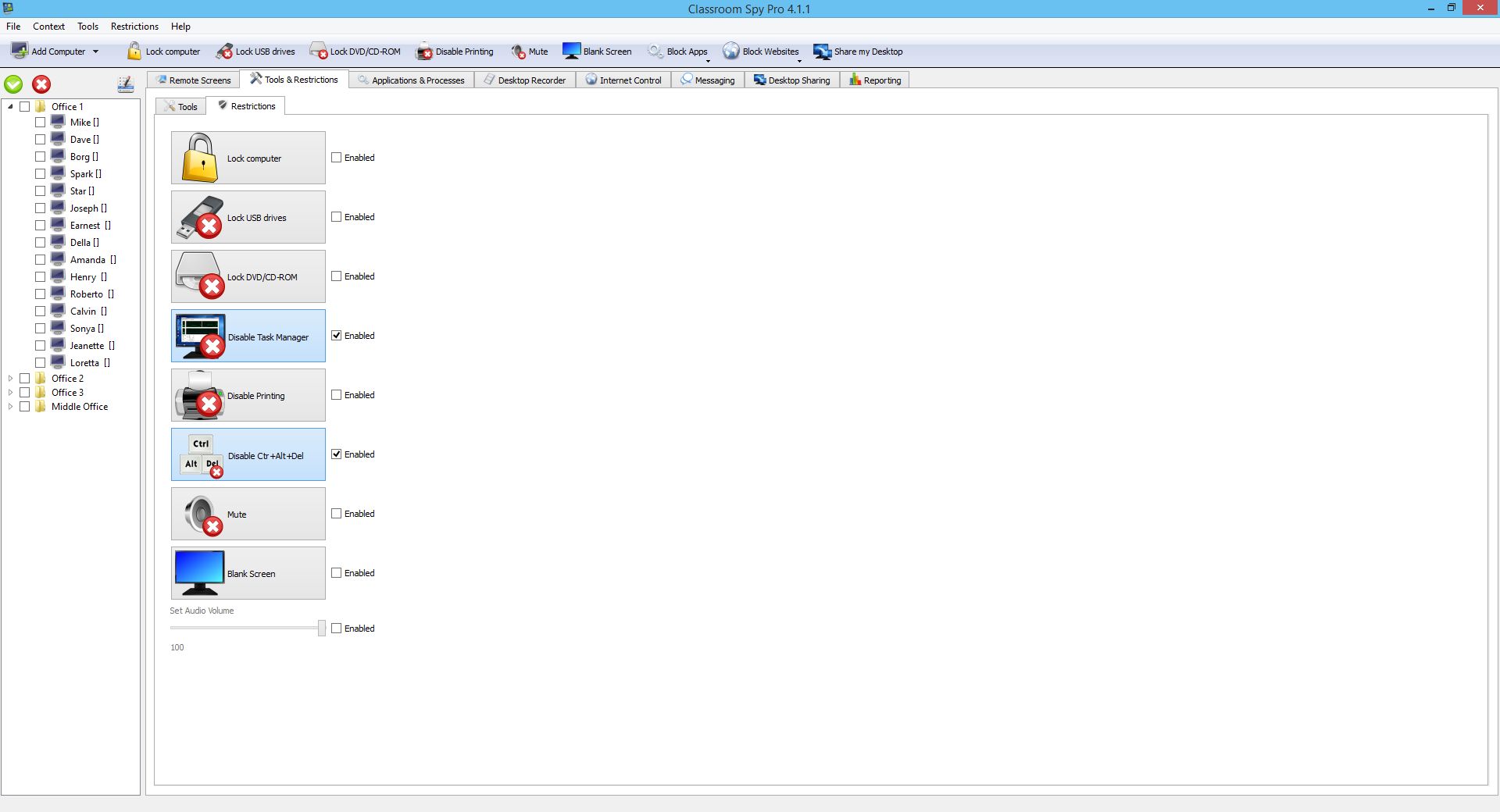
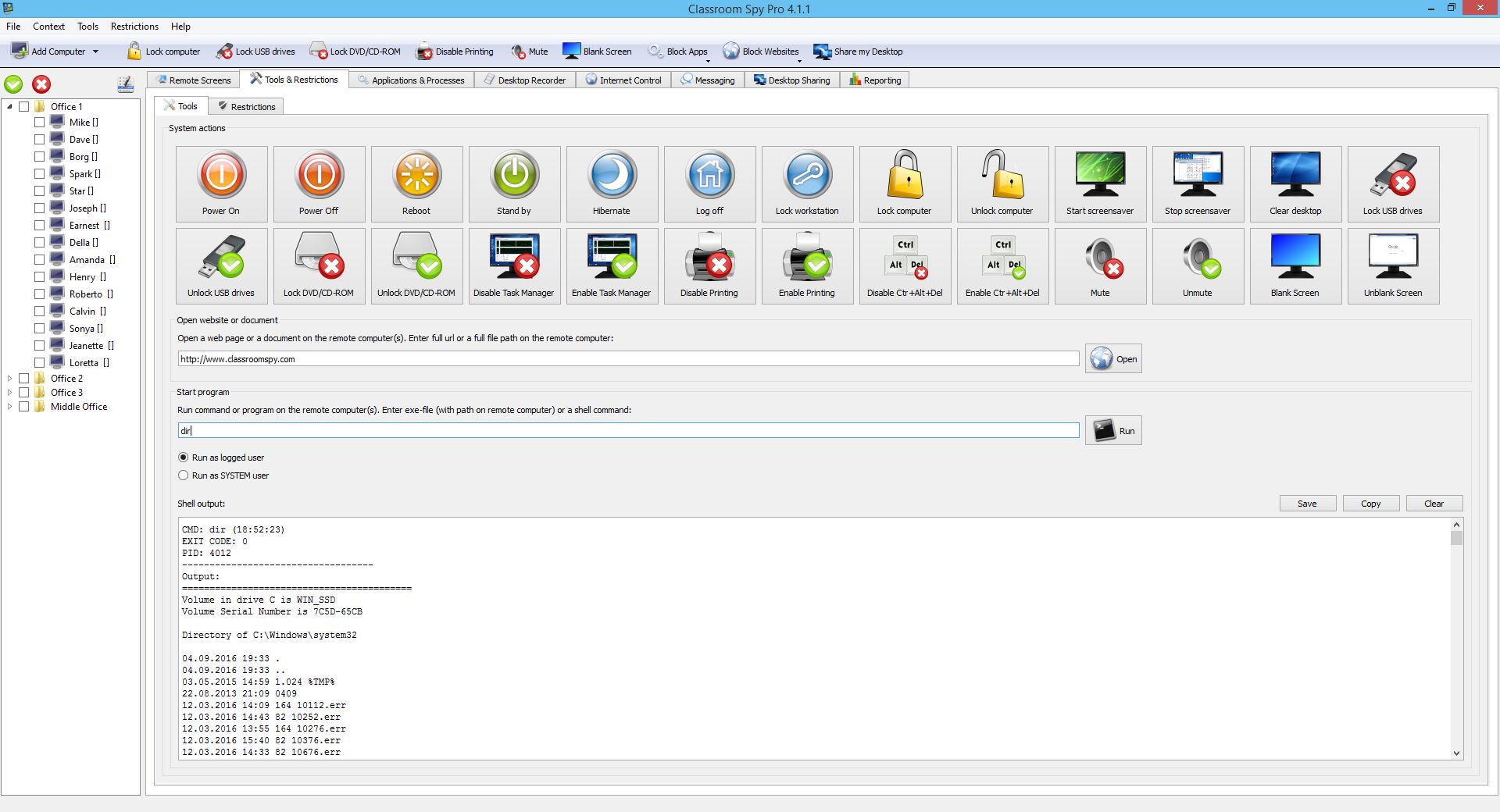
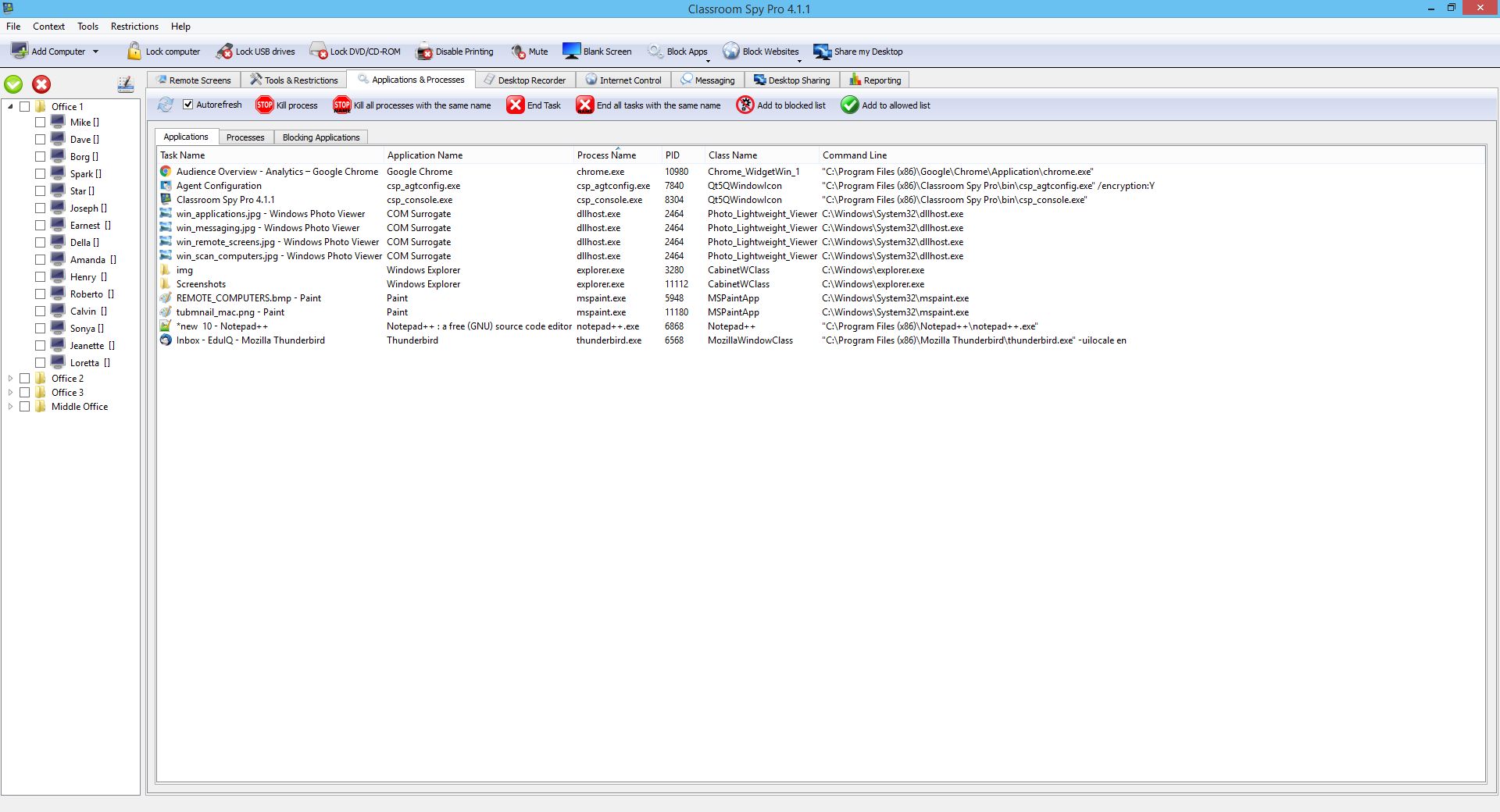
Limit distracting websites and applications or lock screens temporarily.
Share demonstrations, exchange files and review authorized activity records.
The most useful classroom tools support the teacher at the moment they are needed: while explaining a task, helping an individual learner, reducing a distraction or checking that the class is ready to continue.
When every student works on a computer, it can be difficult to see who has started, who is waiting and who has moved away from the task. Live screen thumbnails give the teacher an overview without walking behind every desk.
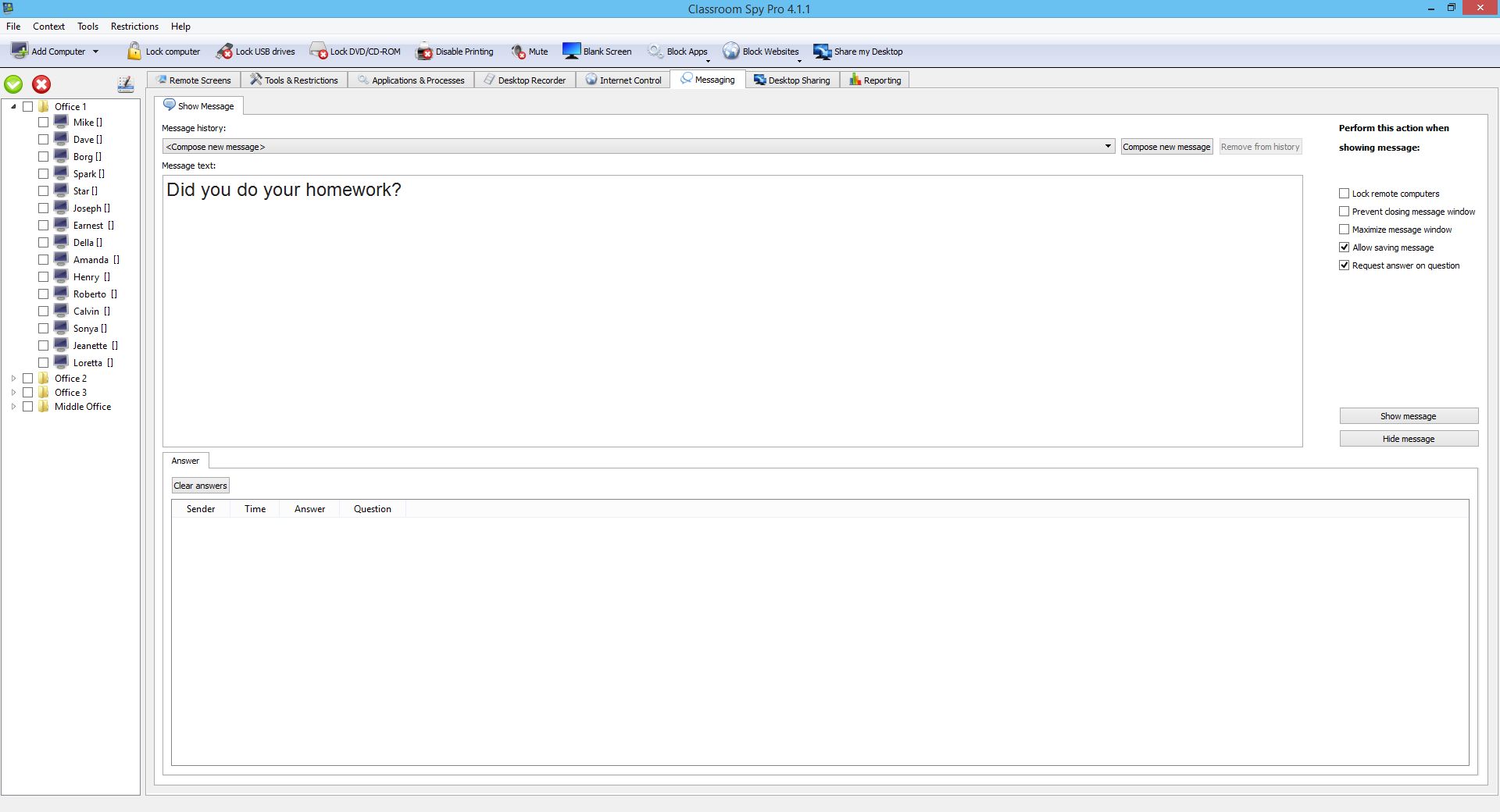
The teacher can share a demonstration, display instructions on selected computers, ask a written question and collect responses in the console. These tools support an existing lesson plan; they do not replace the school’s learning platform or assessment system.
Read the teacher messaging guide
Educational websites and applications are valuable, but games, social media and unrelated programs can pull attention away from the lesson. Classroom Spy Pro lets an authorized teacher:
Read the website and internet control guide
Remote Screens shows live thumbnails of connected computers in one teacher console. A teacher can enlarge a selected screen, send a message, or take keyboard and mouse control when a student asks for help.
Real-time visibility is most useful when it leads to a timely teaching action: clarify an instruction, demonstrate the next step, close an unrelated program or assist a learner without interrupting the rest of the class.
Read the student screen monitoring guide
Students do not always reach the same point at the same time. The teacher can visually check task status, send a tailored message or file to selected computers, remotely demonstrate a step, and collect completed work.
These are teacher-directed actions. Classroom Spy Pro does not grade work, measure academic attainment or automatically assign different lessons; it gives the teacher practical ways to provide individual help.
Read the remote file manager guide

Clear instructions reduce confusion in a computer classroom. A teacher can send a message or question to selected student computers, optionally keep it visible until acknowledged, and review submitted text answers in the console.
For visual instruction, the teacher desktop - or one selected remote desktop - can be shown to other computers. Lesson files can be distributed before an exercise and collected afterwards, keeping communication connected to the task being taught.
Read the teacher desktop sharing guide
Where school policy permits, teachers can record selected student screens as video or periodic screenshots for later review. Recording can be started manually or scheduled for defined days and times.
The school controls whether recording is enabled, who can access saved files and how long they are retained. Classroom Spy Pro does not make automated academic or disciplinary decisions from recordings.
Read the student screen recording guide
Install Classroom Spy Pro on one or more teacher or administrator computers. Console installations are not counted as monitored computers.
Install and password-protect the agent on school computers. IT teams can configure it locally or remotely, or use an MSI package for managed deployment.
Scan the local network, add computers by address, use VPN, or configure Cloud Connection for computers reached over the internet.
Open Remote Screens to see the class, then use monitoring, control, messaging, sharing, restrictions, recording and file tools as required.
Read the setup guide View product screenshots
Students differ in experience, confidence and pace. Classroom technology is most helpful when it lets the teacher respond to those differences without losing sight of the whole class.
The teacher remains responsible for deciding what each learner needs. Classroom Spy Pro lets the teacher view a student's screen and provide help directly from the console. The teacher can send a message or file, start remote control, or share a demonstration with the selected computer.
Use the classroom overview to see which stage a selected student has reached.
Choose a private message, a different resource, a demonstration or remote assistance.
Help that learner while the rest of the class continues working on managed computers.
This approach supports differentiation without claiming to measure learning progress automatically. Academic assessment, grading and lesson selection remain with the teacher and the school’s learning systems.
Keep a full class visible from the teacher desk, help students remotely, demonstrate software, and lock screens when everyone needs to listen.
Share an instructor desktop, distribute exercises, collect files and monitor task progress on organization-managed computers.
Monitor supported Windows Terminal Services, Remote Desktop and thin-client sessions where multiple users work on a shared server.
Use an existing VPN or a Cloud Connection subscription when the teacher and student computers are on different internet-connected networks.
The right product depends on the computers your school manages, how those computers connect, which controls teachers actually need and how the organization handles privacy and administration.
Which operating systems run on teacher and student computers, and are mobile apps consoles or monitored endpoints?
How Classroom Spy Pro fits: The complete teacher console and student agent package is available for Windows, macOS and Linux (X11 and Wayland), with a separate Chromebook agent. The iOS and Android apps are teacher consoles; they do not monitor phones or tablets. Compare supported platform downloads.
Will classes connect over LAN, WLAN or VPN, or must the teacher reach computers over the internet?
How Classroom Spy Pro fits: Perpetual licenses connect school-managed computers over LAN, WLAN or VPN. A Cloud Connection subscription connects teacher and student computers over the internet when they are on different networks. Review the LAN, WLAN and VPN setup or the Cloud Connection setup.
Do teachers need live screens, remote help, messaging, demonstrations, restrictions, files or recordings?
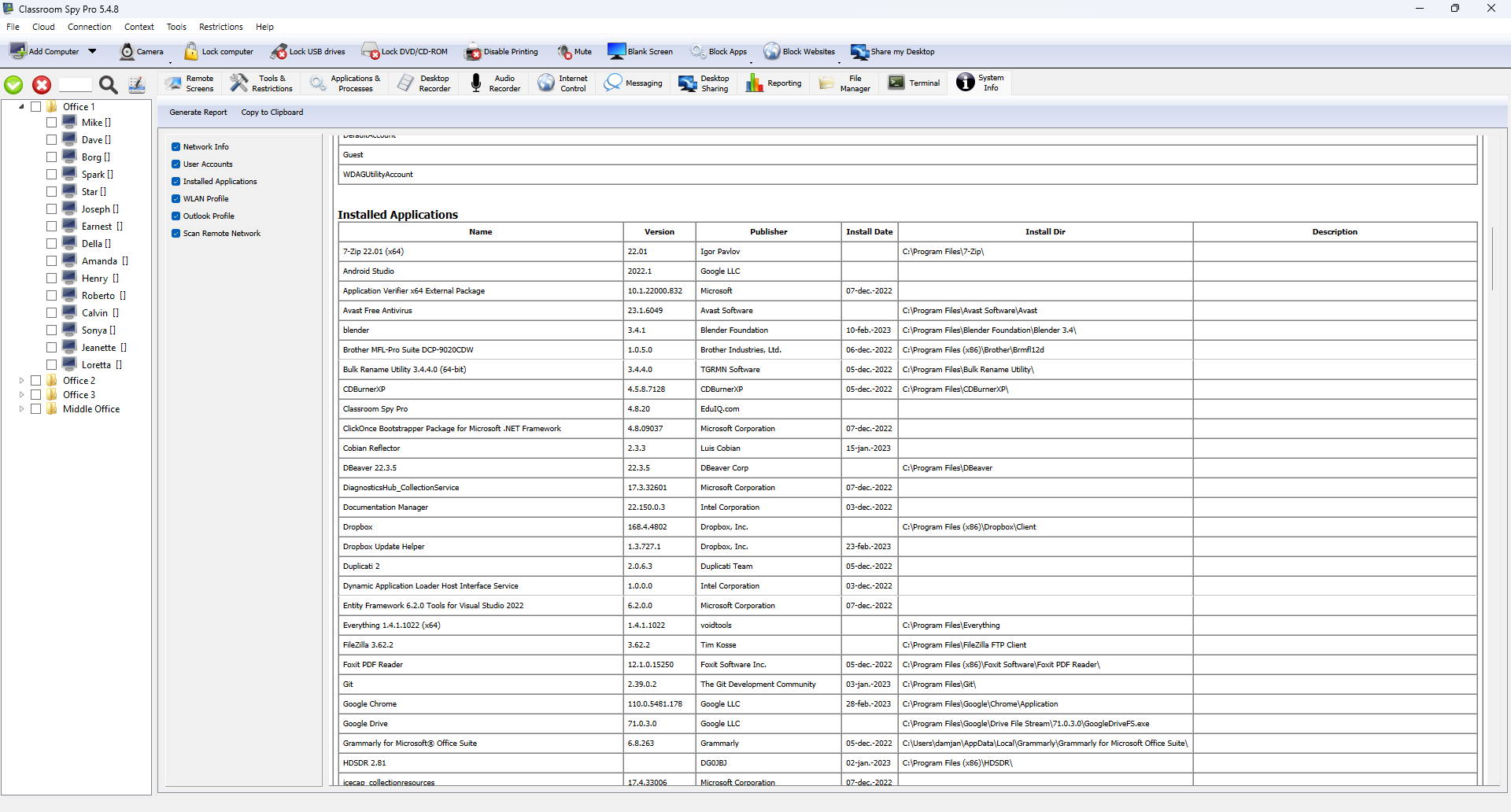
How Classroom Spy Pro fits: Teachers can view live screen thumbnails, remotely control a selected computer, send messages, share a demonstration, block websites and applications, exchange files, lock screens, and create authorized screen recordings. Compare classroom monitoring features and see the teacher console.
How will IT install, configure, password-protect and update the console and student agents?
How Classroom Spy Pro fits: IT installs the console on teacher computers and a password-protected agent on managed student computers. Agents can be installed and configured locally or remotely, or deployed with an MSI package available on the download page. See the teacher console installation guide and student agent deployment instructions.
Does the school need a small computer-count license, a site license, a district license or a subscription?
How Classroom Spy Pro fits: Perpetual options cover 5, 10 or 25 monitored computers, one school building, or a school district. Cloud Connection is licensed per monitored computer by month or year. Teacher console installations are unlimited and do not count as monitored computers. Compare classroom monitoring licenses and prices.
Which data can be viewed or retained, who receives access, where is it stored and when is it deleted?
How Classroom Spy Pro fits: In an on-premises deployment, monitored data travels directly between school-managed agents and consoles using the product's encrypted protocol. The school decides which optional recording and reporting features are enabled, who can access retained data, and when it is deleted. Review the Classroom Spy Pro privacy and GDPR guidance and reporting and retention settings.
Schools can verify compatibility before purchasing: download the free trial, review answers to setup and licensing questions, or contact Classroom Spy Pro support about a specific network or deployment.
Compare features Compare licenses
Quick answers about classroom monitoring features, supported computers, deployment, licensing, privacy and evaluation.
Yes. Remote Screens displays live thumbnails of connected student computers. A teacher can enlarge an individual screen or start remote control when assistance is needed.
Yes. Internet Control can block or allow selected websites, while application and process tools can close unwanted programs and prevent blocked applications from running.
Yes. Schools can use an existing VPN or purchase a Cloud Connection subscription for internet-connected computers that are not on the same local network.
Yes. Perpetual licenses require a one-time payment for monitoring over LAN, WLAN or VPN. Cloud Connection licenses are monthly or yearly subscriptions.
No. The iOS and Android apps let a teacher operate the console from a phone or tablet; they do not monitor mobile devices.
The complete teacher console and student agent package is available for Windows, macOS and Linux (X11 and Wayland). A separate agent supports managed Chromebooks. Compare downloads and platform requirements.
No. Teacher and administrator console installations are unlimited. The license count applies to student or other managed computers running the agent. Compare license sizes and prices.
Yes. IT teams can install and configure agents locally or remotely, or use the student agent MSI package for Active Directory deployment. Follow the student agent deployment guide.
Yes. A teacher can share the teacher desktop - or one selected remote desktop - with connected classroom computers for demonstrations. See the desktop sharing instructions.
Yes. Authorized users can record selected student screens manually or by schedule as video or periodic screenshots. Schools control whether recording is enabled, access to saved files and retention. Read the student screen recording guide.
In a typical on-premises deployment, monitoring data travels directly between school-managed agents and consoles. Optional recordings and reports can be stored locally, with access and deletion controlled by the school. Review the privacy, storage and GDPR guidance.
Yes. Classroom Spy Pro can monitor supported Windows Terminal Services, Remote Desktop Protocol (RDP) and thin-client sessions where multiple users work on a shared server. See the RDP and terminal-session setup guide.
Yes. Schools can install the free evaluation on their own computers to confirm platform compatibility, network connectivity and teacher workflow before choosing a license. Download the free evaluation.
Read all setup, licensing and privacy questions
Final thoughts
Classroom management software works best as one part of a clear teaching and technology policy. It gives authorized teachers visibility into school-managed computers and practical tools for guidance, demonstrations, restrictions, communication and individual assistance.
Before rollout, confirm platform compatibility, choose the appropriate network and license model, document responsible-use rules, and train teachers to use only the features that support the lesson. A free evaluation lets your school test the workflow on its own computers before purchasing.
Ask about deployment, purchase orders, licensing or technical requirements.
Email:
info@classroomspy.com
IDEAS FOR YOUR NEXT LESSON
Practical guides for teachers and school IT teams.

Build a practical routine for focused lessons on student computers.
Read the guide
Compare platforms, connection options and the tools teachers actually need.
Read the guide
Plan your devices, connect your classroom and prepare for the first lesson.
Read the guide