Deploy Classroom Spy Pro in a school computer lab
From the device inventory to the first lesson: a clear plan for connecting classroom computers and giving teachers a dependable starting point.
Updated
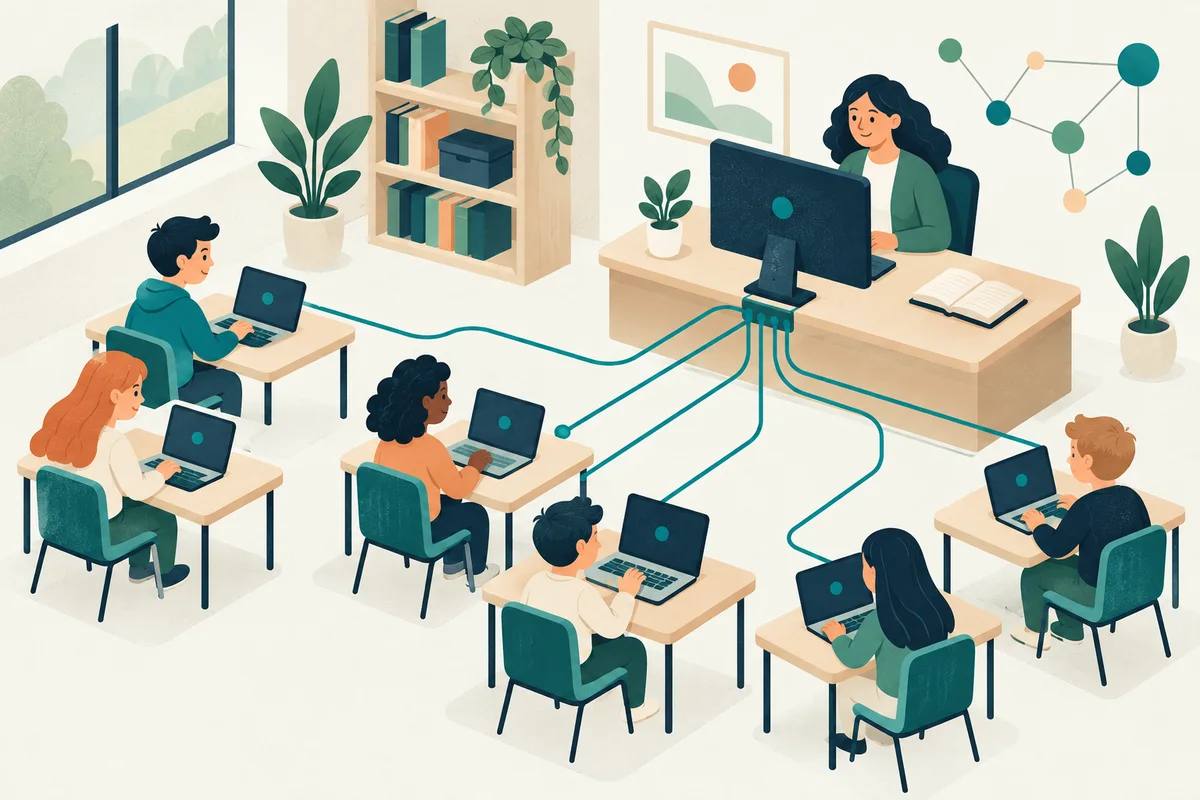
Start with one teacher console and a few representative student computers. Confirm the connection and lesson workflow before rolling out to the whole lab.
A computer lab is ready when teachers can start a lesson, students can reach their learning resources, and IT can support the environment consistently. Installing classroom management software is one part of that preparation.
This guide describes a practical Classroom Spy Pro deployment sequence. Use it as a planning checklist alongside the detailed installation documentation. Operating-system permissions, network settings, and school policies will determine the exact configuration.
1. Plan the devices and connection
Create an inventory of the computers to be managed, their operating systems, and the teacher devices that will run the console. Record useful names for rooms and workstations. Consistent names make it easier for a teacher to select the right computer during a lesson.
Identify the connection model early. For computers reachable across a school LAN, WLAN, or VPN, follow the local network setup guide. For connections over the internet, review Cloud Connection setup and its subscription requirements.
Ask the network administrator to verify the required connectivity using the settings in the current documentation. Do not solve a connection problem by broadly disabling firewalls or weakening school-wide protection. Test the specific route between the console and agents. Follow the staged connection troubleshooting sequence.
or Cloud Connection over the internet
Conceptual connection diagram. The selected license, operating systems, and network configuration determine the setup steps.
2. Install the teacher console and student agents
Download packages from the official download page. Review the requirements for each operating system and use a school-approved administrator account for installation. Keep the pilot configuration documented so it can be repeated.
Install the console on the teacher or administrator computer by following console setup. Install and configure the agent on the student computers according to the selected connection guide. Apply the documented authentication and access settings before expanding the deployment.
For managed Windows environments, review the Windows MSI packages with the IT team responsible for software distribution. Treat deployment configuration as a controlled school IT task. Test installation and removal on a small sample before using your normal deployment system.
Chromebooks have their own agent deployment instructions. If the lab uses Remote Desktop sessions or thin clients, use the RDP guide. Follow the relevant platform instructions rather than reusing a desktop procedure without checking it.
3. Verify a small pilot from both sides
Confirm that the teacher console can connect to the intended computers and that their names match the inventory. Check the student experience as well: the required learning resources should remain accessible and the applied controls should match the lesson plan.
| Check | What to verify |
|---|---|
| Connection | The intended computers appear in the console after the normal sign-in or restart process. |
| Screen overview | Teachers can identify the right computer and view its current screen. |
| Teaching tools | Screen sharing, messages, and the planned assistance workflow work on each target platform. |
| Restrictions | Required websites, logins, media, and applications remain usable. |
| Access and records | Authorized staff access and any recording or reporting settings match the school's decisions. |
Use the guides for screen monitoring, desktop sharing, and messages and questions as the basis for the teacher checks. Write down the steps that worked so the first lesson does not depend on remembering the pilot setup.
When something fails, record the affected computer, platform, connection mode, and exact action. Compare it with a working device. A specific report helps IT or product support investigate the problem more effectively.
Worked procedure: one teacher and two student PCs
Illustrative setup: one Windows 11 teacher PC running the desktop Console and two Windows 11 student PCs running the Agent, on a school-managed LAN. Use matching current packages from the official download page and record their exact versions in the worksheet. This is a repeatable test procedure, not a report of a completed school deployment.
| Item | Example value | Check before starting |
|---|---|---|
| Student computers | lab-01, lab-02 | Replace with the real DNS names or approved IP addresses. |
| Connection | Direct school LAN; Agent TCP 5444 by default | The configured Agent port and route are allowed only for the intended school network. |
| Authentication | School-managed Agent password and connection-security configuration | Enter credentials in the Console. Keep passwords and private keys out of the worksheet. |
| Recording | Leave disabled for this screen-viewing test | Test recording and retention separately if the school requires them. |
- Follow Console installation on the teacher PC and Agent installation on each test PC.
- Add both PCs using the Console connection workflow. Check the displayed computer identity and resolve authentication errors before continuing.
- Open Remote Screens, choose the test group and ensure Pause monitoring is clear. Open a harmless text document on each student PC, change one line, and observe the corresponding tile.
- Send “Please reply with READY” through Messaging with the answer option enabled. Verify that each reply is associated with the intended PC.
- End the test, record the results below, and resolve failures before repeating the procedure on the remaining devices.
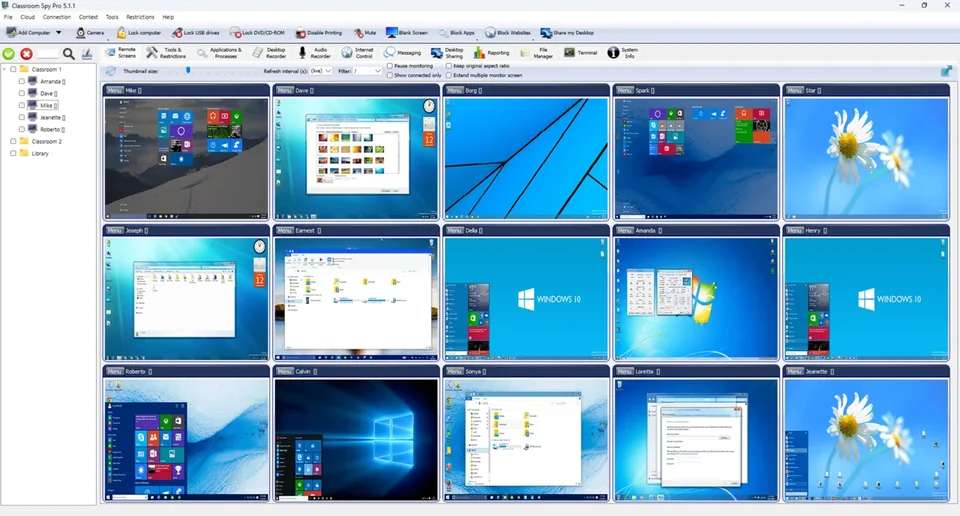
| Check | Expected observation | Evidence to record |
|---|---|---|
| Identity | Each test PC is connected under its own name. | Actual computer names, versions and connection status. |
| Refresh | The edited line appears on the corresponding screen tile. | Pass/fail, selected refresh setting and any delay or frozen display. |
| Reply | The teacher receives READY from each intended computer. | Pass/fail and any missing or incorrectly associated response. |
Record the actual outcomes in the pilot worksheet. For a failed connection, use the staged connection checks.
4. Prepare a dependable first lesson
Introduce only the tools teachers need to begin: finding their class, checking screens, sharing a demonstration, sending a message, and helping an individual student. Practise ending restrictions and returning students to normal work as deliberately as enabling them.
Prepare a short lesson routine with a clear starting resource and a checkpoint. Test any website controls against the complete activity. Include sign-in pages, embedded content, and submission tools in that test.
Explain the school's use of classroom monitoring to students. Teachers should know who to contact about access, unexpected connections, or recording settings. A documented support route makes a new lab easier to use with confidence.
5. Maintain the deployment after rollout
Keep the device inventory, console configuration, and deployment notes current as computers move or are replaced. Include classroom software in the school's normal update and change-management process. Recheck the lesson workflow after changes to operating systems, network rules, or learning platforms.
If the school enables recording or activity reports, assign responsibility for access and retention. Review reporting and deletion settings and the product's privacy information. Keep only the records the school has decided it needs, according to its policy.
Finally, gather teacher feedback after the first few sessions. Look for repeated support requests and simplify the instructions around those tasks. A useful deployment guide should reflect the real classroom, including the small details that make starting a lesson easier.
Common questions
Do I need a student agent on every managed computer?
The student agent is the component used on supported computers you want to manage. Install the appropriate agent and follow the platform-specific setup guide. Mobile teacher console apps do not turn student phones into monitored computers.
Can I expand from a pilot to the full lab?
Yes. First verify the intended device count and license, document the working configuration, and use your school's approved deployment process. Recheck a sample of devices after expansion.