Internet Control can be used to keep students on approved learning websites and block websites that distract from class work.
This feature allows you to block all websites, allow only selected websites, block websites by address or keyword, show a message, redirect the browser to a configured URL, or close the browser that opened a blocked website.
Typical use cases include:
- Allowing only the websites needed for a test or lesson.
- Blocking games, social media, video sites, or unrelated pages.
- Redirecting students to the school learning portal.
- Stopping browsing when a student opens a blocked website.
Internet Control
Internet Control enforces website policy on student computers with allow/block modes, URL and keyword lists, and configurable blocked-site actions.
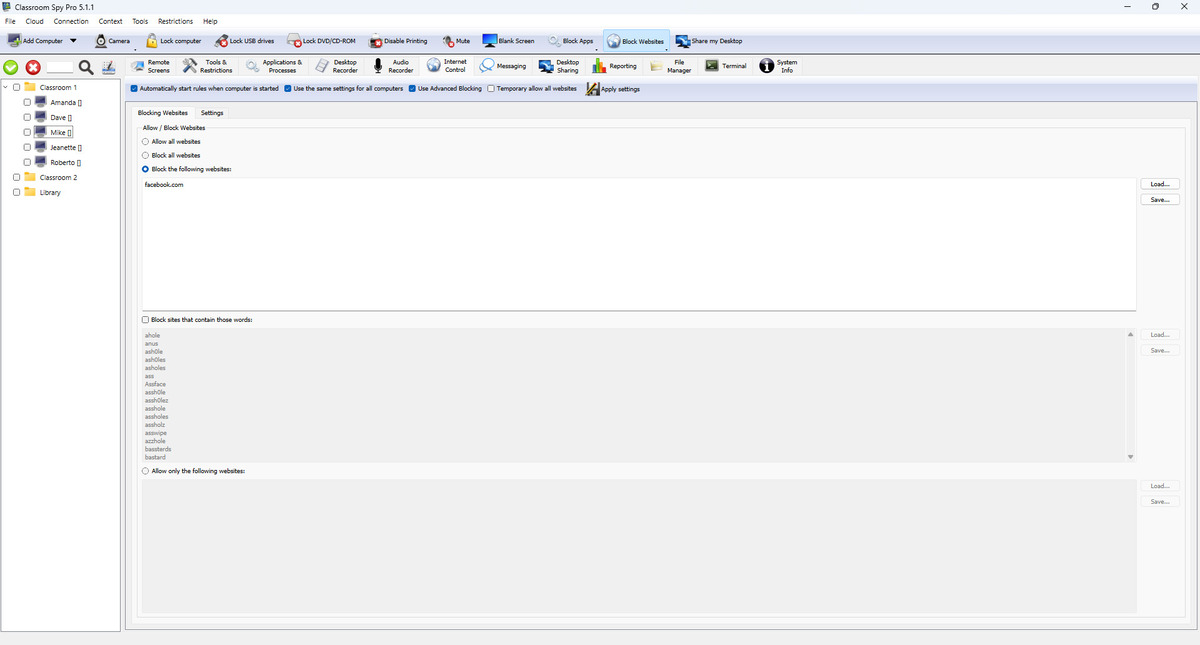
Top Bar Settings
- Automatically start rules when computer is started makes policy persistent after restart.
- Use the same settings for all computers applies one global profile instead of per-computer policy.
- Use Advanced Blocking enables lower-level filtering behavior.
- Temporary allow all websites temporarily bypasses blocking until policy is re-applied.
- Apply settings confirms and pushes current configuration.
Blocking Websites Tab
- Choose how internet access should work: allow all websites, block all websites, block only listed websites, or allow only listed websites.
- Add website addresses to your allow list or block list.
- Use Load... and Save... to import or export your website lists.
- Block sites that contain those words blocks websites that include selected words in the address.
Settings Tab (Blocked-Site Behavior)
- Show message: display custom message in browser.
- Redirect: redirect browser to configured URL.
- Close browser: closes browser that opened blocked website.