Remote Terminal can be used by teachers or school IT administrators to run shell commands on selected student computers.
This feature allows teachers or school IT administrators to run CMD, PowerShell, Bash, or SH commands without opening a full remote desktop session.
Typical use cases include:
- Running shell commands for classroom computer maintenance.
- Checking network or file information on a student computer.
- Starting a school-approved script on selected computers.
Remote Terminal
Terminal opens an interactive shell on the selected student computer (for example cmd.exe on Windows or /bin/bash on Linux/macOS).
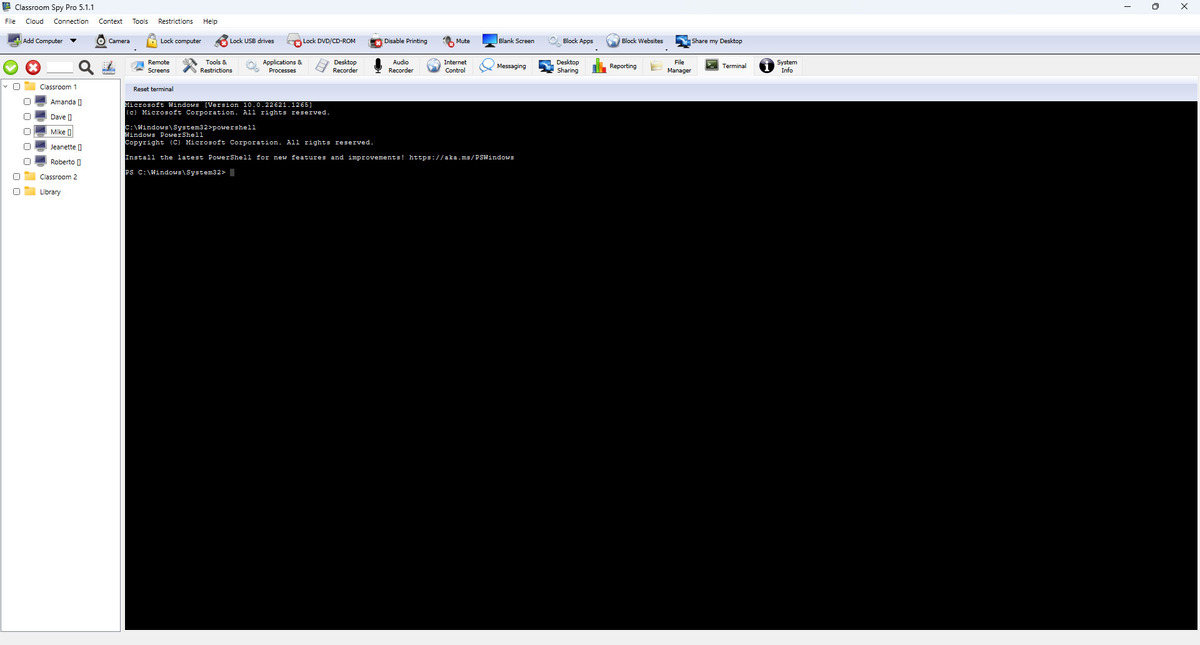
What You Can Do In This Screen
- Run commands interactively on the selected connected computer.
- Use Reset terminal to stop current shell and start a clean shell session.
- Switch between computers while keeping each session output separated.
How Terminal Sessions Work
- When Terminal tab is selected, the console starts terminal session automatically for current connected student computer.
- Keyboard input is sent directly to the student computer shell, and results appear in real time.
- Terminal window resize keeps the shell display readable in full-screen and split views.
- Each student computer keeps its own command output, so switching computers does not mix history.
When To Use Reset terminal
Use Reset terminal when the shell looks stuck, prompt is broken, or output stops unexpectedly. Reset starts a fresh shell. If the student computer shell exits on its own, the terminal session is restarted automatically.