Applications and Processes can be used to see which programs are open on student computers and stop programs that are not allowed during class.
This feature allows the teacher to identify distracting applications, close them on selected student computers, and add unwanted applications to a blocking list.
Typical use cases include:
- Closing games, chat programs, or browsers during an exam.
- Checking whether students are using the required application.
- Blocking a program that should not be used in the computer lab.
- Helping school IT administrators find software that causes problems.
Applications Tab
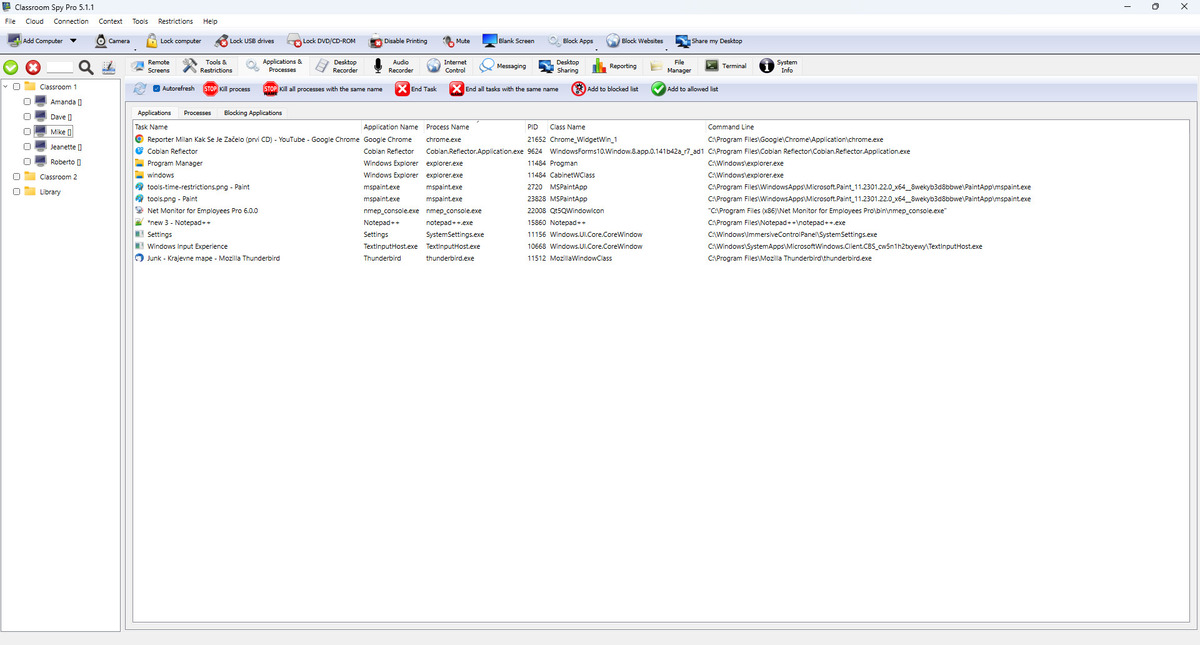
This tab shows visible application windows/tasks. Use it when you need to act on applications that students can see.
- End Task closes the selected app on the current student computer.
- End all tasks with same name closes the same app on all selected computers.
- Add to blocked/allowed list copies app names from selected rows into policy lists.
Processes Tab
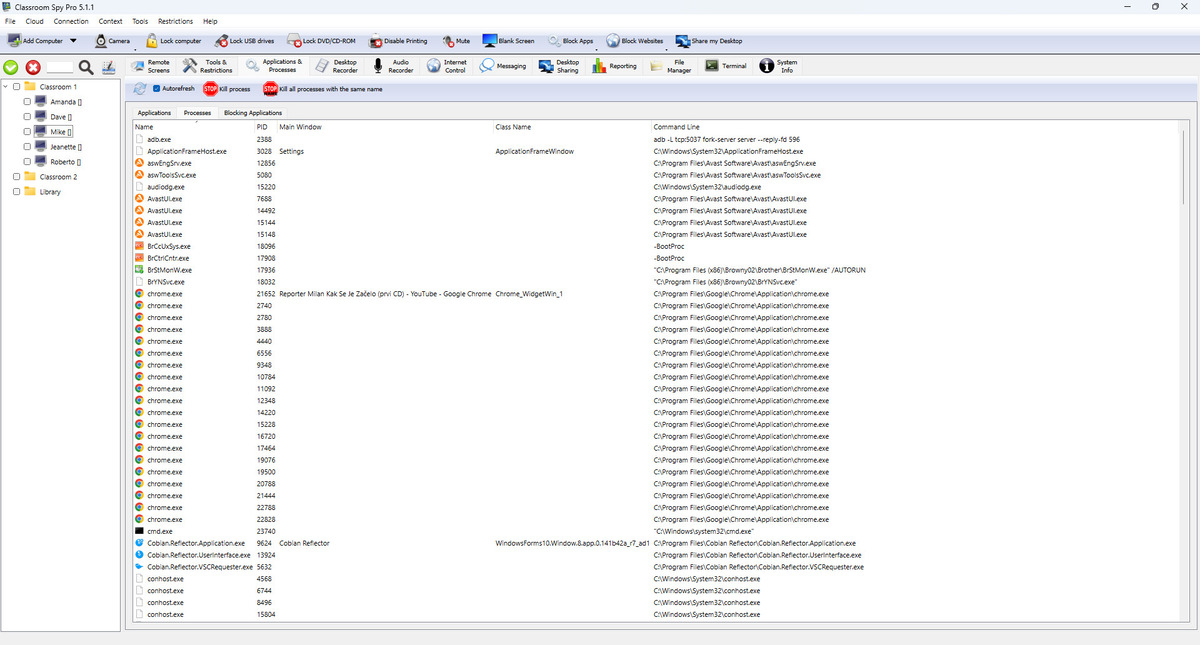
This tab also shows programs that may be running in the background. Use it when a program is active but no normal application window is visible.
- Kill process stops the selected process on the current student computer.
- Kill all processes with same name stops that process on all selected computers.
- The list refreshes automatically every few seconds while this tab is open.
Blocking Applications Tab
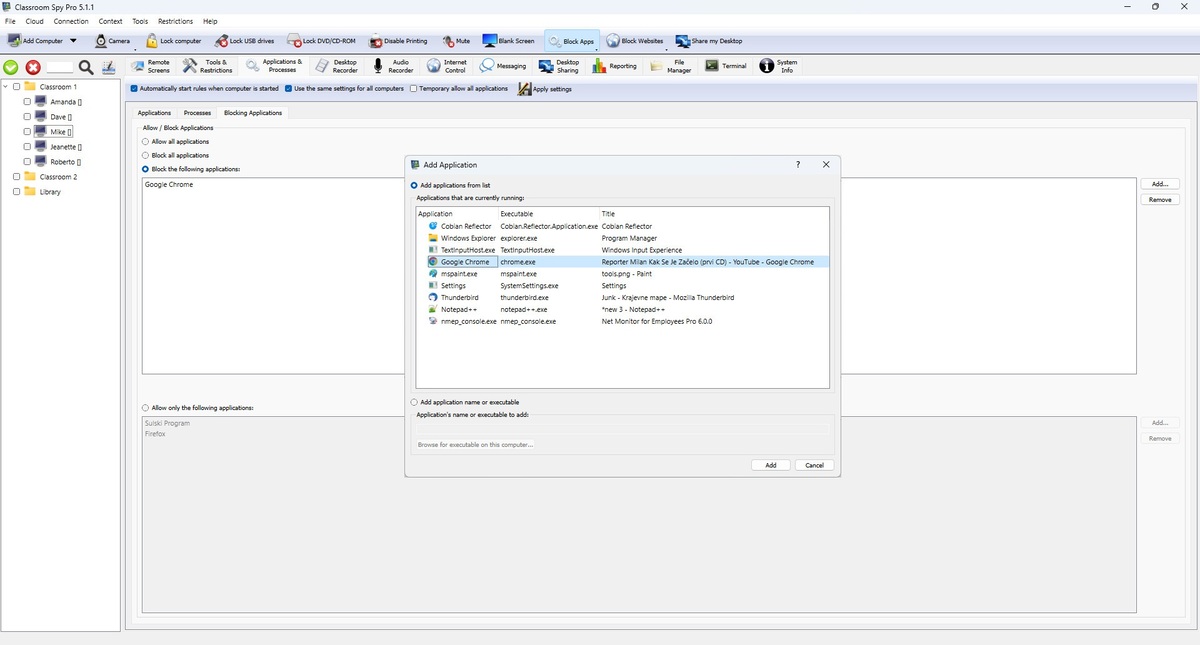
This tab defines student computer run policy. The rule set is saved and sent as settings.
- Allow all, Block all, Block list, or Allow list.
- Automatically start rules starts automatic blocking when the student computer starts.
- Use same settings for all computers keeps one shared policy and applies it globally.
- When shared settings is off, policy can be loaded per current computer and applied only to selected computers.
- Temporary allow all disables enforcement but keeps blocked/allowed lists intact.
- Apply settings applies current rule mode and list settings immediately.