Desktop Recorder can be used to keep recordings of student screen activity for later review. Teachers can use it to document classroom computer work, review practical exercises, or keep proof of student activity when a problem needs to be checked later.
This feature allows you to record student screens automatically or manually, download recordings to the teacher console, and review them after class.
Typical use cases include:
- Keeping recordings of student activity as proof for later use.
- Reviewing how students completed a computer lab assignment.
- Checking what happened when a student reports a technical issue.
- Documenting inappropriate computer use during class.
Desktop Recorder
Desktop Recorder captures remote screens as JPEG snapshots or MKV/MPEG4 video files. You can run it manually, by schedule, or tied to console connection status.
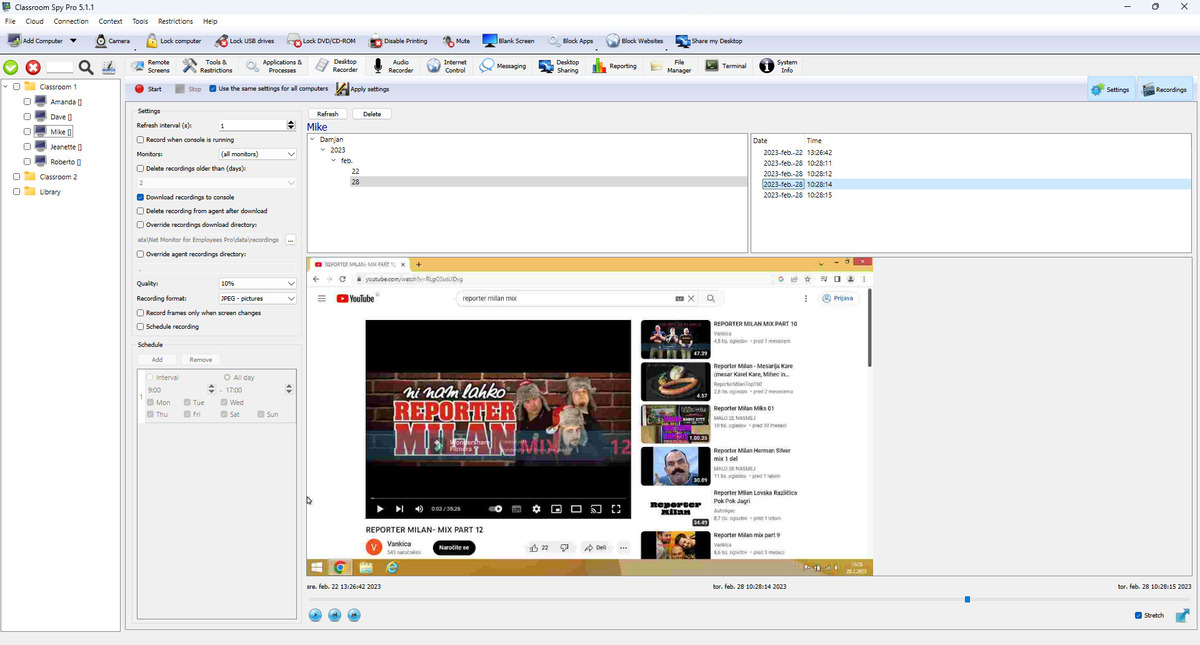
Top Toolbar
- Start applies current settings first, then starts recording on selected computers (after confirmation).
- Stop stops recording on selected computers (after confirmation).
- Use the same settings for all computers controls scope: enabled = one profile for all computers, disabled = selected computers only.
- Apply settings sends configuration changes without forcing Start/Stop.
- If settings were changed and not applied yet, Apply settings blinks red.
- Settings and Recordings buttons show/hide left configuration panel and right recordings panel.
Left Settings Panel
- Refresh interval (s): capture period. Lower values increase detail and storage usage. Recorder captures at about one frame per second minimum.
- Record when console is running: starts when console connects and stops when console disconnects (unless schedule is currently active).
- Monitors: select primary monitor, all monitors, or a specific monitor index.
- Delete recordings older than (days): automatic retention cleanup.
- Recording storage: select local agent storage or a named external storage profile.
- Download recordings to console: enables automatic background download from agents.
- Delete recording from agent after download: removes remote file after successful transfer.
- Override recordings download directory: custom local archive path. If disabled, default console recordings folder is used.
- Override agent recordings directory: custom recording path on monitored computer.
- Quality: 0% to 100% compression quality.
- Recording format: JPEG sequence, MKV video, or MPEG4 video.
- Max file size (Mb): available for video formats only. When limit is reached, recorder starts a new file. (don't limit) means unlimited.
- Record frames only when screen changes: skips duplicate frames and reduces storage/network usage.
- Schedule recording: enables schedule rules below. Use Add/Remove to create entries by weekday and all-day or time interval.
Right and Bottom Panels (Recordings Browser + Player)
- Refresh reloads filters and recording list.
- The first, unlabeled column shows whether a recording is downloaded to this console, encrypted, and stored on external storage. The icons are shown in that order.
- Download to console, Encrypt, and Decrypt apply to the selected recordings. Student-computer-only recordings must be downloaded before they can be encrypted or decrypted locally.
- Save as video... combines the selected recordings in time order into one Matroska (MKV, default) or MPEG-4 video. The progress dialog can be moved to the background, where progress and the Stop button remain available in the status bar. Encrypted recordings are decrypted temporarily when the matching key is available; student-computer-only recordings must first be downloaded.
- Delete removes selected recordings from agent and local downloaded archive.
- Filter tree groups recordings by User → Year → Month → Day.
- Recording list shows Date/Time; selecting an item positions playback to that recording.
- Player timeline spans all recordings in selected filter, not just one file.
- Player controls: Play/Pause, Previous, Next, Stretch, and Full Screen.
- Downloaded local files are merged with remote files in one list so playback works online and offline.
Local Storage and Download
When download is enabled, the console checks connected student computers for new recordings, downloads missing files to the teacher computer, and saves them in the selected recordings folder. If delete-after-download is enabled, the recording is removed from the student computer after it is downloaded successfully.
External and Cloud Storage
Desktop recordings can be uploaded directly by each student computer to SMB 2/3, SMB 1.0, FTP, WebDAV, SFTP, Amazon S3 or compatible S3 storage, Google Cloud Storage, and Azure Blob Storage.
- See External Storage for every provider field, credential source, required permission, and setup step.
- Select the named profile under Recording storage and apply settings to the required student computers.
- Existing local recordings are queued for upload when a student computer is switched to external storage.
- Failed uploads remain pending and are retried; cached recordings remain available while the student computer is offline.
- Optional quotas can delete the oldest recordings or stop recording with an error.
Security warning: SMB 1.0 and FTP are unsafe legacy protocols.
End-to-End Encryption
Encrypt recordings protects local and external-storage files. See End-to-End Recording Encryption for key backup, selected recordings, remote conversion, rotation, and recovery.
Use Decrypt all recordings... to stop encrypting new recordings and convert existing console and selected external-storage files in the background. Encrypted originals are removed only after verification; agent-only recordings must first be downloaded. To create unencrypted copies without changing stored originals, select recordings and click Save unencrypted....
Recommended Setup
For long-term low-storage recording, use JPEG + screen-change detection + longer interval.