System Info can be used by teachers or school IT administrators to collect inventory and troubleshooting information from student computers.
This feature allows you to view reports such as network information, installed applications, user accounts, WLAN profiles, Outlook profiles, and devices found from the student computer network.
Typical use cases include:
- Checking whether lab computers have the required software installed.
- Collecting inventory information before an upgrade.
- Helping school IT administrators diagnose network or account problems.
System Info Reports
Generate structured system/inventory reports from selected student computers. Reports are built step by step and update as each student computer sends data.
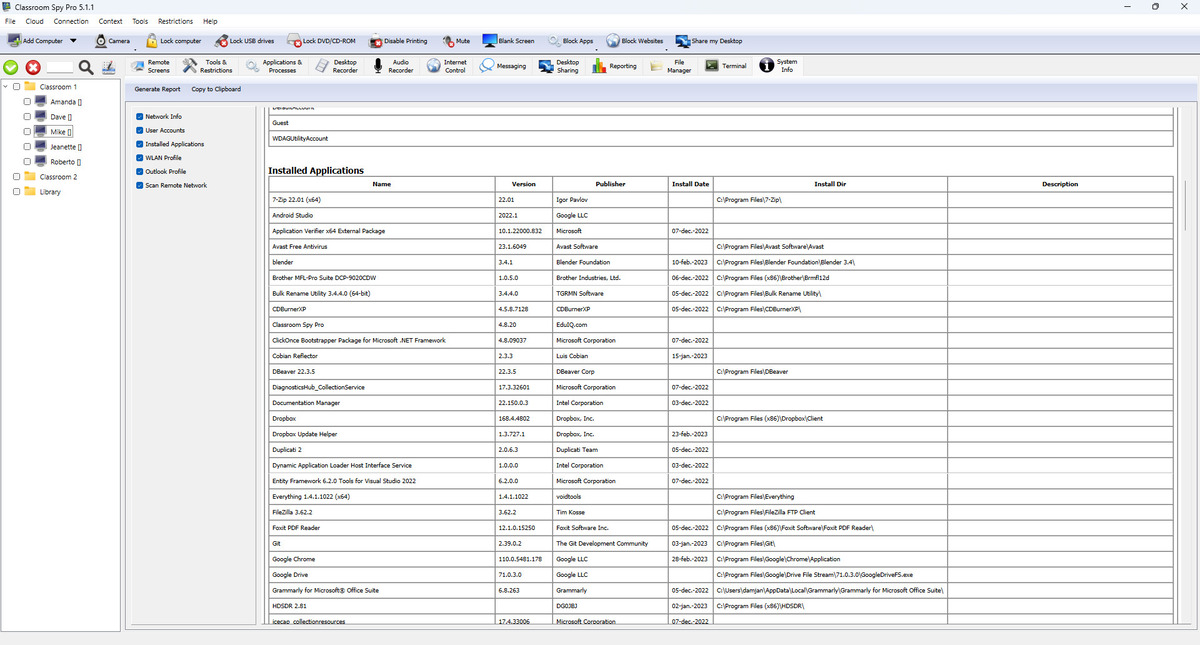
What This Screen Gives You
- Generate Report requests selected sections from all selected connected student computers.
- Copy to Clipboard copies current report output for ticketing, school reviews, and documentation.
- Checkboxes control exactly which report sections are queried.
Report Sections Explained
- Network Info: external IP plus network interfaces and IP/subnet details.
- User Accounts: local user accounts found on a student computer.
- Installed Applications: app name, version, publisher, install date, directory, description.
- WLAN Profile: profile name, authentication, encryption, and key fields.
- Outlook Profile: account and server profile data.
- Scan Remote Network: discovered hosts with IP, host name, MAC, and vendor mapping.
Recommended Workflow
- Select target student computers in the tree.
- Check only reports needed for this task.
- Click Generate Report and wait for responses.
- Export quickly with Copy to Clipboard.
Important Notes
- Remote network scan can take longer than other reports, and results appear as they are found.
- Some reports may include sensitive network information, so share copied results only with authorized school personnel.