How to reduce digital distractions in the classroom
A practical lesson routine that brings attention back to learning—with clear expectations, useful controls, and help at the right moment.
Updated
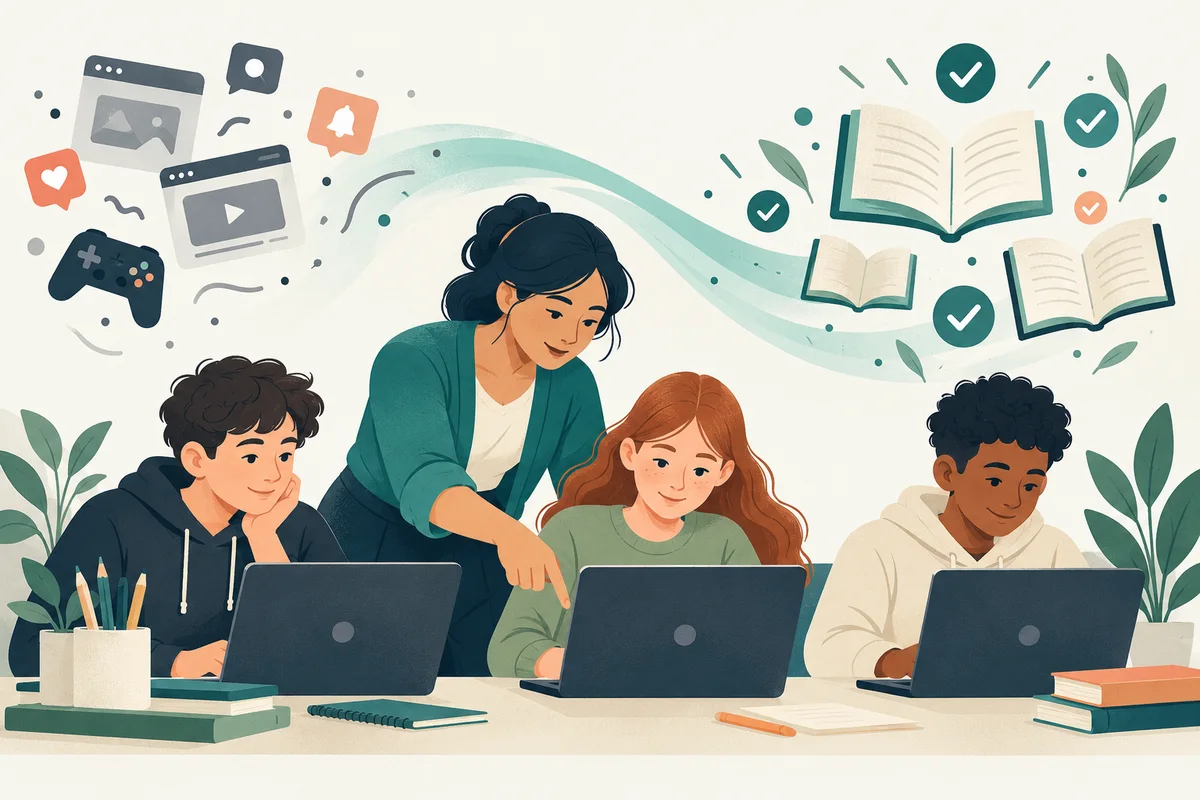
Combine clear lesson expectations with a small set of classroom controls. Prepare the resources, demonstrate the task, check progress, and offer individual help.
A browser can put research, creative tools, games, messages, and unrelated videos within a single click. Keeping a digital lesson on track means making the intended activity easier to follow. Classroom management software can support that work, but the starting point is a lesson students understand.
The routine below works as a planning framework for a computer lab or a classroom using school-managed laptops. Adapt the controls to the activity and your school's policy, then test them on the devices students will actually use.
1. Start with a shared routine
Before students open their laptops, explain what they are making, which resources they need, and what a finished task looks like. A concrete instruction such as “Read the two sources, compare their evidence, and submit a paragraph” gives students a clearer route than “Research this topic.”
Agree on a simple attention signal for demonstrations and a way to request help. Explain which classroom monitoring tools you use and why. Students should know when you may view their school computer screens and how that supports the lesson.
Keep the routine short enough to repeat. Display the task, the approved starting resources, and the first checkpoint in the same place each lesson. Familiarity reduces the number of decisions students need to make before beginning.
- 01Prepare
Set the task and choose the websites and apps students need.
- 02Demonstrate
Share a worked example and explain the next action.
- 03Support
Check progress and help individual students get unstuck.
- 04Review
Check understanding, collect work, and adjust the next lesson.
Use the level of restriction that fits the task. Independent research and a focused assessment need different boundaries.
2. Prepare the digital workspace
Open the lesson resources yourself before class. Check that sign-in pages, embedded media, and linked documents work on a student account. A website restriction that blocks a required login or learning resource can interrupt the very activity it is intended to protect.
For a tightly defined activity, an allowed-websites list can keep the available resources focused. For broader research, blocking selected distractions may be a better fit. Classroom Spy Pro's internet control tools let you configure website access for selected student computers. Test the policy against the full student workflow before applying it to the class.
Applications deserve the same attention as websites. Review the application and classroom control features when planning a session that uses a specific editor, coding environment, or local learning tool. Avoid enabling restrictions simply because they are available; give each one a teaching purpose.
3. Make the next step visible
When a task is unfamiliar, a short demonstration can answer questions that a long written instruction leaves open. Model one useful action, explain your reasoning, then return control of the task to the students.
Use teacher desktop sharing to show a worked example on classroom computers. Prepare the desktop first: close unrelated tabs and documents, turn off personal notifications, and open the example you intend to share.
Keep the transition explicit. Tell students when to watch, when to try the step themselves, and what they should have completed at the next checkpoint. If several learners meet the same obstacle, a second short demonstration may be more useful than repeating the same explanation separately.
4. Observe, then offer support
A screen gives context, but it does not explain a student's intent. An unexpected page may reflect confusion, a broken link, a reasonable research choice, or a distraction. Use what you see as a starting point for support.
The live screen overview helps you check which stage students have reached. Look for patterns: several learners on the login screen may need a class-wide clarification, while one learner on the wrong task may need a private reminder.
For individual help, send a message or question. If a technical problem needs direct assistance, use remote control in line with your school's procedures. Explain the action, show the fix, and let the learner continue independently.
5. Review the lesson, not just the screen
Being on the intended website is not the same as understanding the material. End with a small piece of evidence: an explanation, a worked solution, an exit question, or a submitted file. The file manager can support distributing resources and collecting work from selected computers.
Reflect on where students needed help. Were the instructions unclear? Did the resource require too many steps? Was the restriction too narrow for the research task? Change one part of the routine and try it again.
Monitoring and recording should follow the school's access, notice, and retention decisions. If you use activity reports, review the reporting settings and the product's privacy and data-handling information with the people responsible for your deployment.
An illustrative 35-minute source-comparison lesson
This scenario shows how the routine fits a complete lesson. It is an example for adaptation, not a measured classroom result. The teacher supplies two age-appropriate readings about the same topic in the school learning platform, plus a short response form. Student computers are already authorized and connected.
| Time | Student task | Teacher action and evidence |
|---|---|---|
| 0–5 min | Open reading A, reading B and the response form. | Use Open Website or Document for the approved resources. If using an allow-list, test sign-in, embedded resources and submission first. |
| 5–8 min | Watch how to compare a claim with its source. | Share the teacher screen, model one comparison and stop sharing. Confirm students return to their own work. |
| 8–20 min | Read both sources and identify one agreement and one difference. | Use Remote Screens to notice where help may be needed. A tile still showing a sign-in page is a prompt to ask about access; it is not evidence of poor understanding. |
| 20–25 min | Reply: “Which claim has stronger support, and why?” | Use Messaging with a requested answer. If a response lacks a reason, ask a follow-up question. If access is blocked, offer individual remote assistance with the student, then return control. |
| 25–35 min | Submit a paragraph citing one detail from each reading. | Assess the submitted paragraph against the lesson criteria. End temporary restrictions and note any inaccessible resource for the next lesson. |
Use the submitted paragraph and the checkpoint answer to assess understanding. A screen observation can explain an access problem; it cannot establish learning by itself. Follow school retention rules for any saved messages, recordings or activity logs.
Download a lesson planning and review sheet (CSV) to record the resources, checkpoint, help decision and evidence you intend to use.
Common questions
Should I block the whole internet during a lesson?
Only when the activity genuinely does not require it and the approach matches school policy. Many lessons need a small set of web resources or open research. Test the specific websites and applications required before choosing a restriction.
Can a screen overview replace checking student work?
No. It helps you notice progress and possible obstacles. Use students' explanations and completed work to assess understanding.
Where should a teacher start?
Try one short lesson with a prepared resource list, one screen-sharing demonstration, and a clear checkpoint. Review the product screenshots, then practise the workflow before using it with a whole class.