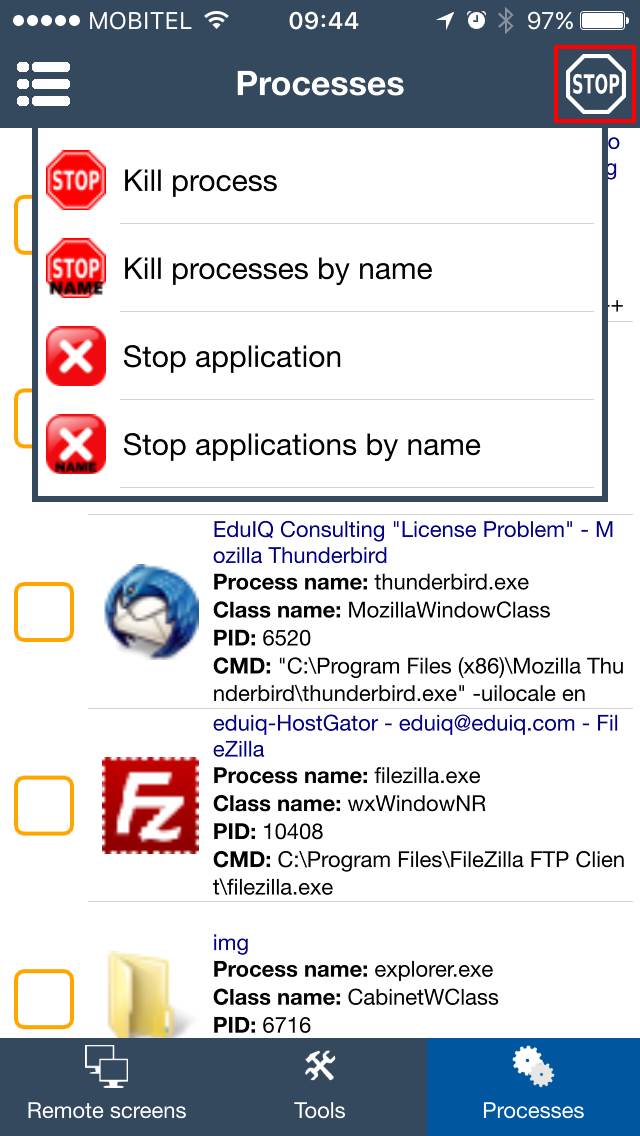
8. Processes view
Processes view shows applications and processes running on the selected student computer. A teacher can use it to understand what is open and close applications that should not be used during class.
The list is displayed for the highlighted computer in Computer list view. Checkboxes can be used to select several processes or applications.
Open the process action menu by tapping and holding a process or by sliding left on a process.
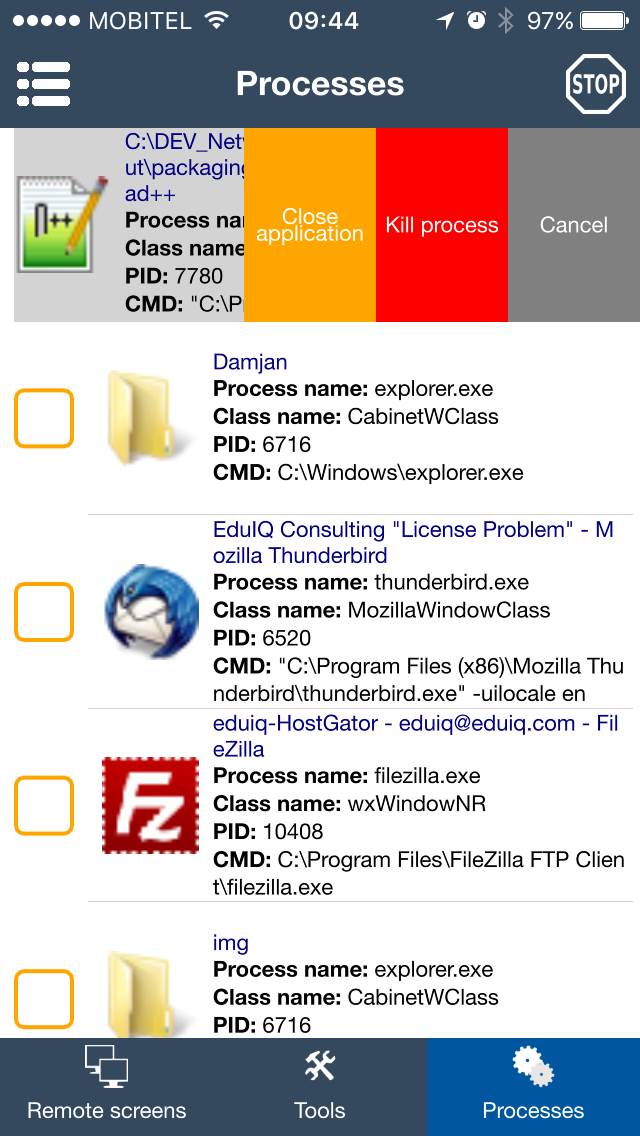
Available actions
- Close application asks the selected application window to close.
- Kill process stops the selected process when it does not close normally.
- Kill process by name stops matching processes on selected student computers.
- Stop applications by name closes matching applications on selected student computers.
Additional process actions are available from the Stop menu in the upper right corner.