How to manage AI use in the classroom
Clear assignment rules, practical website controls, and evidence of learning for lessons with or without generative AI.
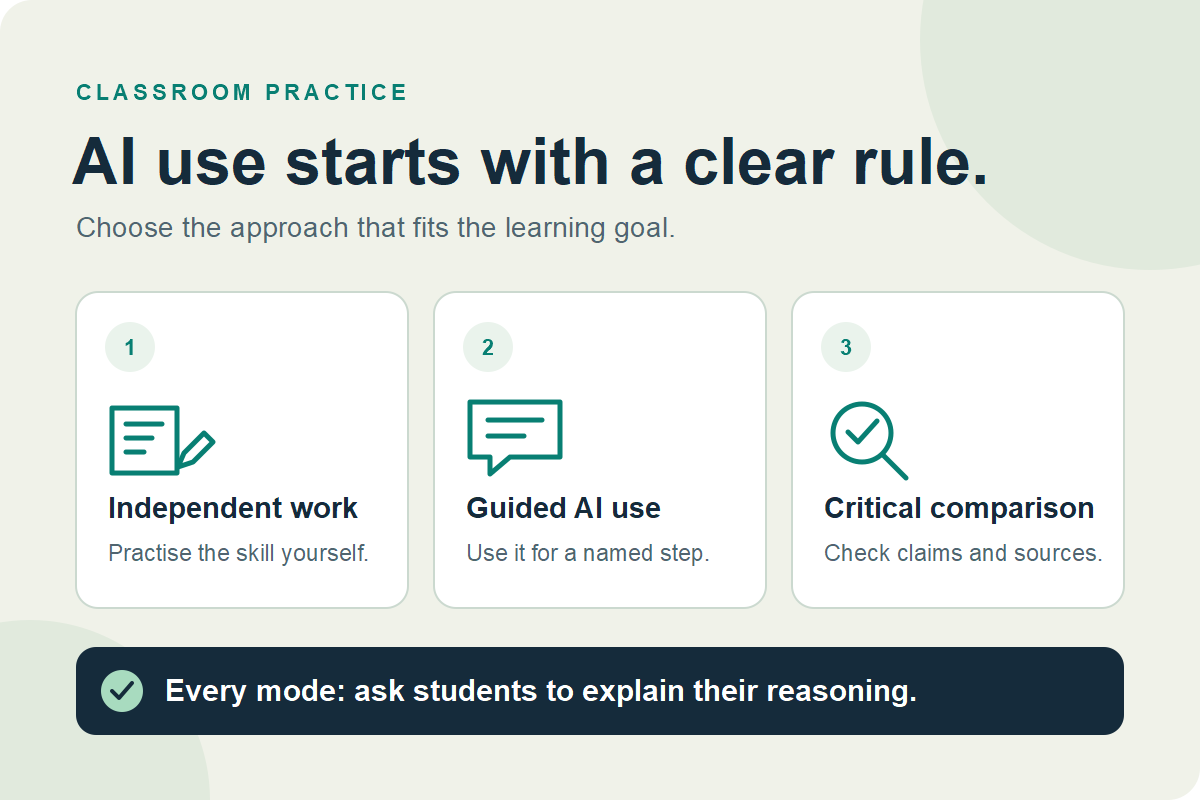
Define whether AI is allowed for the assignment, specify the permitted tools and actions, and ask students to explain their work. On supported school-managed computers, use website controls to match those rules and live screen views to offer help. Assess learning through drafts, source checks, and student explanations.
A student who asks an AI tool for feedback on an outline is doing something different from a student who submits a generated answer unchanged. A useful classroom AI policy makes that distinction clear before the assignment begins.
This guide turns that decision into a lesson routine for teachers and school IT teams. It combines assignment design with Classroom Spy Pro's documented classroom controls. The lesson and checklist below are illustrative planning examples.
1. What AI use is allowed for this assignment?
Choose the learning goal first. If students are practising a skill independently, explain which assistance is unavailable. If the task includes AI, define how students must inspect and account for its contribution. Apply the school's policy and any assessment-specific rules before choosing a mode.
| Assignment mode | Rule students can follow | Evidence to collect |
|---|---|---|
| Independent work | Use the supplied readings and editor. Do not use generative AI for this task. Keep agreed accessibility support available. | An outline, a completed response, and a brief explanation of one decision. |
| Guided AI use | Use the approved tool only for the named step, such as suggesting questions. Write the final response yourself. | The relevant prompt and output, the student's revisions, and an explanation of what changed. |
| Critical comparison | Evaluate a teacher-provided AI response against reliable sources. Identify and correct unsupported claims. | Annotated claims, source references, and a corrected explanation. |
For student-facing tools, check school approval, age suitability, account requirements, and data handling before the lesson. UNESCO's guidance on generative AI in education emphasizes human agency, privacy, and age-appropriate use. A teacher-prepared example offers a way to discuss AI output without requiring students to create accounts.
“You may use the approved AI tool to suggest three research questions. Choose one question, verify your evidence in the supplied sources, and write your own response. Submit the prompt and relevant output, then explain one suggestion you changed or rejected. Use only the provided topic information in the prompt.”
2. How can teachers manage access to AI websites?
Classroom Spy Pro's Internet Control supports website allow lists and block lists on supported student agents and browsers. An allow list suits a tightly defined task with known resources. A block list leaves broader research available while restricting selected sites. Neither approach establishes who wrote a submitted answer.
- Save the normal configuration. Select the intended test computers, save the website lists, and record the current rule mode.
- Match access to the task. Choose
Allow only the following websites:for a focused resource set, orBlock the following websites:for selected restrictions. Include the learning platform and required sign-in or resource domains. - Test the student workflow. Click
Apply settings. On a student account, check an approved site, a deliberately restricted site, sign-in, document editing, accessibility tools, and submission in every browser used for the lesson. - Explain and supervise. Tell students which resources are available and how to request help when a required page is blocked.
- Restore access at the end. Restore the previous lists and mode, apply the settings, and verify normal access before the next class.
Check the documented platform limits: Advanced Blocking adds a network filter on Windows; macOS browser integration targets Safari and Google Chrome and needs the relevant permissions; ChromeOS uses Chrome tab information. The current Linux browser-filter implementation does not enforce these website actions. Test the actual device and browser combination before relying on a rule.
AI may also be available inside an otherwise permitted application or website. Blocking a chatbot domain does not disable every AI feature, and classroom computer rules do not control a student's separate personal phone. Review built-in AI settings with school IT. For desktop applications, consult the application control guide and verify support on your devices.
3. How do you check learning when AI is available?
Collect a small amount of evidence during the task: an initial idea, a source choice, a revision, and a final explanation. For permitted AI use, ask for the relevant prompt and output with the student's account of what they accepted, rejected, or corrected. Avoid requesting unrelated conversations or personal account history.
Use the live screen overview to notice where help may be needed. A student still on a sign-in screen may have an access problem. A student reading an unexpected source may need to explain its relevance. Discuss what you see; a screen observation alone cannot establish authorship or understanding.
A short question with a requested answer can create a useful checkpoint: “Which source supports your claim, and what did you change after checking it?” Follow up in person when the explanation needs clarification.
England's Department for Education guidance on generative AI in education notes that outputs can be inaccurate or biased and require professional judgment. Build a source check into the activity: students should open the underlying source and locate the supporting passage, rather than assume a generated citation is correct.
An illustrative 35-minute AI fact-checking lesson
Goal: distinguish a supported claim from an unsupported one. Prepare two age-appropriate sources, a short AI-generated response produced with an approved teacher tool, and a response sheet. Review the example in advance. Students work with the supplied material; individual AI accounts are unnecessary.
| Time | Student task | Teacher checkpoint |
|---|---|---|
| 0–5 min | Read the task and open the sources and response sheet. | Explain that the task uses a supplied AI example. Confirm resource access and the rule for independent work. |
| 5–10 min | Watch one claim checked against a source. | Use desktop sharing to model finding evidence, then stop sharing. |
| 10–22 min | Label three claims as supported, contradicted, or not established by the supplied sources. | Check progress and ask for the source passage behind one label. Help with access problems. |
| 22–30 min | Rewrite one weak claim and explain the correction. | Ask why the original wording was too strong or unsupported. |
| 30–35 min | Submit the annotated claims and corrected explanation. | Assess the reasoning against the task criteria, then restore the normal website rules. |
If a learner marks a claim “not established,” ask what additional evidence would be needed. This makes uncertainty part of the learning task. The example is a planning scenario, not a report of measured classroom outcomes.
A classroom AI checklist for the next assignment
- State the learning goal and whether AI is allowed.
- Name the permitted tool, task step, and required acknowledgment.
- Confirm school approval, suitable accounts, and the information students may enter.
- Keep agreed accessibility support and an alternative route to the task available.
- Test websites, sign-in, resources, and submission on student devices.
- Plan one checkpoint that asks students to explain their reasoning.
- Decide what work to collect and follow the school's retention rules.
- Restore temporary website or application restrictions after class.
For broader lesson planning, use our guide to reducing digital classroom distractions. If the school is evaluating its tools, the classroom management software checklist explains how to run a representative pilot.
Common questions about AI classroom management
Should teachers block all AI websites?
Choose access rules to fit the assignment and school policy. Independent practice may require restricted access; a guided AI activity needs an approved tool. Test required resources and accessibility support before applying either rule to the class.
Can classroom monitoring prove that a student used AI?
A live view can show activity on a connected, monitored computer at that moment. It cannot by itself establish the origin of every sentence or what happened on another device. Use it as context alongside drafts, source checks, and a conversation with the student.
Is website blocking the same as AI detection?
No. Website blocking controls access to specified resources on supported devices. It does not analyze submitted writing to determine whether AI generated it. Classroom Spy Pro's workflow here uses access controls, screen viewing, and teacher questions.
Can students learn about AI without individual AI accounts?
Yes. A teacher can supply an example response for students to evaluate against selected sources. The worked lesson above asks students to check claims and explain corrections using the supplied material.
Sources and further reading
External guidance reviewed on October 29, 2026. Adapt classroom decisions to the rules that apply to your school.
- UNESCO: Guidance for generative AI in education and research — international guidance on human agency and appropriate use.
- Department for Education: Generative artificial intelligence in education — guidance for England on opportunities, limitations, and responsible use.
- Classroom Spy Pro Internet Control documentation — rule modes, testing, restoration, and platform limitations.
Try the classroom workflow on your school devices
Evaluate website controls, live screen viewing, and teacher messaging with a small group of authorized test computers before using them in a lesson.
Try Classroom Spy Pro