How to check student understanding in a computer lab
A practical routine for gathering answers, spotting misconceptions, and deciding what to teach next during digital lessons.
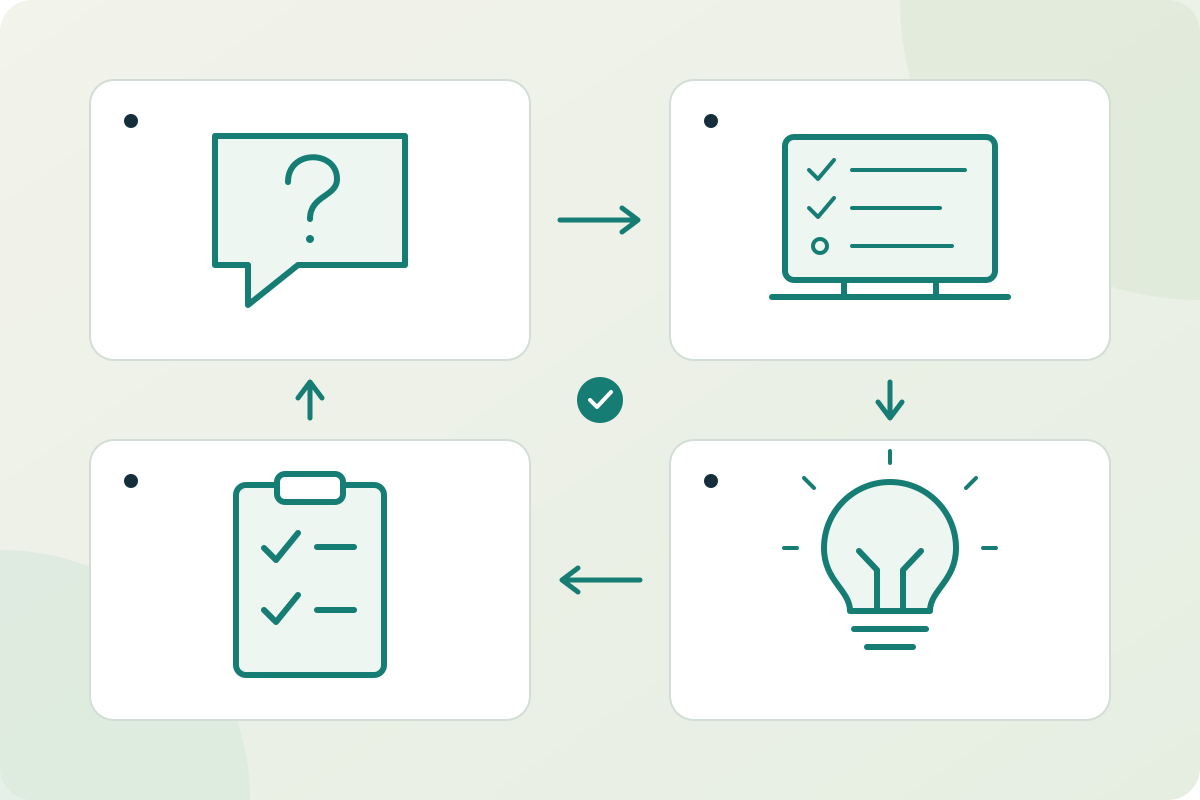
Formative assessment means collecting evidence of what students understand and using it to adjust teaching. In a computer lab, ask a focused question, collect a response from each learner, inspect the reasoning, and choose a next step. Live screen views can help you notice a problem, but student explanations show more than a completed screen alone.
A class can look busy while several students repeat the same mistake. Finishing a worksheet, opening the right application, or clicking through a task does not tell you whether the intended idea has been learned. Plan a short check before students carry that mistake into the next activity.
The Australian Education Research Organisation's Monitor progress guide connects checks for understanding with decisions about additional instruction, guidance, or feedback. The routine below is an illustrative way to apply that principle in a digital lesson, using Classroom Spy Pro where it fits your devices and teaching plan.
1. Plan one question that will change your next step
Choose a specific learning goal, such as explaining why a spreadsheet formula includes the wrong cells. Write a question that exposes that idea and sketch a correct response plus one likely misconception. Decide beforehand what you will do with each type of answer.
- Sound answer and reasoning: offer a new example to apply the idea.
- Correct answer with unclear reasoning: ask the learner to explain one step.
- A shared misconception: model a contrasting example, then ask a different check question.
- No response: check access, reading, language, and input needs before drawing a conclusion about understanding.
The NSW Department of Education's checking for understanding guidance emphasizes responses from all students and questions tied to the learning just taught. A general confidence question can start a conversation, but pair it with something the student must explain or demonstrate.
2. Run a five-minute check during independent work
Use these timings as a starting point, allowing extra thinking time and agreed accessibility support. The aim is a useful teaching decision, not the fastest reply.
- Minute 1 — ask. Select the intended student computers. In the Messaging workflow, enter a short question in
Message text:, enableRequest answer on question, and selectShow message. Keep input locking off when students need to inspect their work. - Minute 2 — collect. Students enter a response in
Answer text:and selectSend answer. Provide an oral or paper route when a learner cannot use the digital response. Test this workflow on the actual student device types before class. - Minute 3 — interpret. Review the
Answertab. Separate a missing answer from an incorrect explanation. Use the live screen overview to investigate a sign-in problem or an unexpected task state, then ask the student what happened. - Minute 4 — respond. Give a specific next step to a student or small group. If many explanations reveal the same gap, use teacher desktop sharing to model a prepared example. Avoid showing identifiable student work to the class without the appropriate permission.
- Minute 5 — check again. Stop sharing, use
Hide messageto dismiss the active prompt, and ask a fresh question that uses the same idea. Decide whether to continue, give further practice, or revisit the explanation.
This workflow gathers responses for the teacher to interpret. It is not automatic grading, an AI detector, or a measure of ability based on screen activity. Keep only the evidence needed for the lesson and follow your school's rules for access and retention.
3. Replace completion checks with questions about reasoning
| Learning task | Question to ask | Evidence to look for |
|---|---|---|
| Spreadsheet totals | Which cells does your formula include? Which required value is missing? | The student connects the formula range to the intended data. |
| Reading a source | Which sentence supports your claim? Explain the connection in your own words. | The selected passage supports the claim, and the explanation makes the link clear. |
| Programming | Predict the next output before running the program. Which instruction makes you expect it? | The prediction follows the program's logic rather than a guess from a previous run. |
| Comparing graphs | Two graphs use the same data but different vertical scales. What changed in the impression they give? | The student distinguishes a visual effect from a change in the underlying values. |
Ask for a short answer that you can review while it still matters. For a shared computer, get an individual explanation from each partner at different points; a response from the device does not demonstrate that both learners understand.
A worked example: diagnosing a spreadsheet error
Learning goal: explain the difference between adding a range and adding its two endpoints. In a spreadsheet using English function names, enter 3, 4, 5, and 6 in cells B2 through B5. Ask students to compare =SUM(B2:B5) with =B2+B5.
Check question: “Which formula adds all four values? Name the cells it includes, and explain why the other formula gives a different total.” The first formula includes B2, B3, B4, and B5 and returns 18. The second includes only B2 and B5 and returns 9.
If a learner identifies the correct formula but cannot name its cells, ask them to point to the range. If several learners expect both formulas to include all four cells, demonstrate the two middle values being omitted by the endpoint formula. Then ask a new question using a different range and values; repeating the original answer would not show whether the explanation transferred.
A student staring at an empty sheet may need the file opened or the task clarified. Resolve that access problem before interpreting the missing answer. The example is a proposed lesson sequence, not a report of measured learning gains.
4. Make the exit ticket shape the next lesson
An exit ticket is a brief response collected near the end of a lesson. Use one question about the central idea and one next-step prompt, for example: “Explain how you would check that a total includes every intended row. Which part would you like to practise again?”
Read the answers before planning the next session. Note the concept to revisit, the students who need a follow-up, and a question that will check progress. Give learners time to use the feedback. A folder of collected responses has little instructional value if it never changes the next activity.
For lessons involving generative AI, state whether assistance is allowed and ask students to explain a decision in their work. See our classroom AI guide for assignment rules and their limits. For everyday lesson organization, use the routine for reducing digital distractions.
Common questions about digital formative assessment
Is watching student screens enough to check understanding?
No. Screen views show activity on the connected computer. Pair observations with a focused question, a brief demonstration, or the student's explanation before deciding what support is needed.
Does every check need a grade?
No. The routine here is a low-stakes teaching check. Explain its purpose and use the answers to plan feedback or further practice. Follow your school's assessment policy for any work that contributes to a grade.
Can I use this without classroom management software?
Yes. Paper slips, mini whiteboards, oral responses, or a school-approved learning platform can collect evidence. Classroom Spy Pro provides a messaging and screen-viewing workflow on supported connected computers; the teacher still designs the question and interprets the answers.
What if students do not answer?
Check that the prompt arrived, that the student can read it and respond, and that sufficient thinking time was available. Offer an accessible alternative. A missing digital answer is not, by itself, evidence of a misconception.
Sources and further reading
External guidance reviewed on October 29, 2026. The question examples and timing suggestions in this guide are illustrative teaching plans.
- Australian Education Research Organisation: Monitor progress — using checks to inform instruction and feedback.
- NSW Department of Education: Checking for understanding — gathering responses and choosing the next instructional step.
- Classroom Spy Pro Messaging documentation — message controls and the question-and-answer workflow.
Try one learning check on your classroom devices
Test teacher messaging, student responses, and live screen viewing with a small group of authorized computers before using the routine in a lesson.
Try Classroom Spy Pro